
Custom Shaders
- GLSL 문법, RawShaderMaterial, ShaderMaterial을 직접 작성하고 이해하는 데 필요한 개념들을 보충 설명과 함께 제공합니다.
- Three.js의 기본 속성과 GLSL 변수 타입, 구조를 정리했습니다.
1. 셰이더란?
셰이더(Shader)는 GPU에서 실행되는 작은 프로그램입니다. WebGL에서는 반드시 사용되며, Three.js의 모든 Material 내부에서도 사용되고 있습니다.
셰이더는 주로 두 가지 종류로 나뉩니다:
- Vertex Shader
- 각 정점(Vertex) 의 위치를 화면상의 2D 위치로 변환합니다.
- 주입된 정점 좌표, 모델 위치, 카메라 정보 등을 바탕으로 gl_Position에 위치를 할당합니다.
- 매번 다른 정점마다 실행되며, attribute 데이터를 받습니다.
- 공통적인 데이터는 uniform을 통해 전달됩니다.
- Fragment Shader
- 각 화면상의 조각(Fragment) 을 색칠합니다.
- varying 키워드를 사용해 vertex shader로부터 데이터를 전달받습니다.
- gl_FragColor에 색을 지정하여 출력합니다.
- 정점 셰이더는 렌더에서 정점을 배치합니다.
- 프래그먼트 셰이더는 해당 지오메트리의 각 보이는 프래그먼트(또는 픽셀)에 색상을 지정합니다.
- 프래그먼트 셰이더는 정점 셰이더 이후에 실행됩니다.
- 각 정점 사이에서 변경되는 데이터(예: 위치)를 속성 이라고 하며 정점 셰이더 에서만 사용할 수 있습니다.
- 정점 간에 변경되지 않는 데이터(예: 메시 위치나 색상)를 균일 데이터 라고 하며 정점 셰이더 와 프래그먼트 셰이더에서 모두 사용할 수 있습니다.
- 다양한 방법을 사용하여 정점 셰이더에서 프래그먼트 셰이더로 데이터를 보낼 수 있습니다.
2. 첫 번째 셰이더 작성
ShaderMaterial은 셰이더 코드에 자동으로 코드가 추가되는 반면 , RawShaderMaterial 은 이름에서 알 수 있듯이 아무것도 추가되지 않는다
const material = new THREE.RawShaderMaterial({
  vertexShader: `
    uniform mat4 projectionMatrix;
    uniform mat4 viewMatrix;
    uniform mat4 modelMatrix;

    attribute vec3 position;

    void main()
    {
        // 최종 화면 좌표를 계산
        gl_Position = projectionMatrix * viewMatrix * modelMatrix * vec4(position, 1.0);
    }
  `,
  fragmentShader: `
    precision mediump float;

    void main()
    {
        // 빨간색으로 조각을 칠함
        gl_FragColor = vec4(1.0, 0.0, 0.0, 1.0);
    }
  `,
});
결과: 빨간색 정사각형 Plane 출력.
- position은 로컬 좌표계 기준의 정점 위치
- modelMatrix → 로컬 → 월드 좌표
- viewMatrix → 월드 → 카메라 좌표
- projectionMatrix → 카메라 → 클립 좌표
vec4(x, y, z, w)의 w는 위치냐 방향이냐를 구분하기 위한 수단입니다.
vec4에서 w는 뭘 의미하나?
| 위치 | vec4(x, y, z, 1.0) | 진짜 좌표 | 이동(translation)에 영향을 받음 |
| 방향 | vec4(x, y, z, 0.0) | 방향 벡터 (예: normal, 빛 방향) | 이동에는 영향 없음 |
예시로 비교:
vec4 pos = vec4(1.0, 2.0, 3.0, 1.0); // 위치
vec4 dir = vec4(1.0, 0.0, 0.0, 0.0); // 방향
이걸 modelMatrix에 곱했을 때:
- pos는 이동 + 회전 + 스케일이 적용됨
- dir은 이동 없이 회전 + 스케일만 적용됨
이 차이를 구분하기 위해 w를 쓰는 겁니다.
실전에서 왜 필요한가?
- 조명을 계산할 때 빛의 방향은 방향 벡터 (w=0)
- 정점 위치는 좌표이기 때문에 위치 벡터 (w=1)
- 모든 vertex는 gl_Position = MVP * vec4(position, 1.0); 형태로 처리됨
3. 셰이더 파일 분리하기
🔧 폴더 구조
/src
  /shaders
    /test
      vertex.glsl
      fragment.glsl
🔧 vite-plugin-glsl 설치
npm install vite-plugin-glsl
vite.config.js에 설정 추가:
import glsl from 'vite-plugin-glsl';

export default {
  plugins: [glsl()],
};
Shader languages support for VScode 확장 프로그램 설치
플러그인을 설치해서 구문 색상을 구분해줍니다.
🔧 셰이더 파일 가져오기
import vertexShader from './shaders/test/vertex.glsl';
import fragmentShader from './shaders/test/fragment.glsl';

const material = new THREE.RawShaderMaterial({
  vertexShader: testVertexShader,
  fragmentShader: testFragmentShader,
  // wireframe: true,
  // side: THREE.DoubleSide,
});- wireframe, side, transparent 또는 flatShading와 같이 다른 재질에서 다룬 일반적인 속성의 대부분은 RawShaderMaterial에서도 여전히 사용할 수 있습니다.
- 하지만 map, alphaMap, opacity, color, 등의 속성은 더 이상 작동하지 않습니다. 이러한 기능을 셰이더에서 직접 작성해야 합니다.
4. GLSL 기본 문법 요약
- 종료 세미콜론 필수
- 타입 명시 필수
- 주요 타입:
- float: 소수 (예: 1.0)
- int: 정수
- bool: 불리언
- vec2, vec3, vec4: 벡터
- mat4: 4x4 행렬
- sampler2D: 텍스처
5. 정점 셰이더의 구조
uniform mat4 projectionMatrix; // 카메라 투영 행렬
uniform mat4 viewMatrix;       // 카메라 뷰 행렬
uniform mat4 modelMatrix;      // 모델 변환 행렬
// view + model을 합쳐서 modelViewMatrix로도 표현 가능
// uniform mat4 modelViewMatrix;
// (최적화를 위해 model과 view를 미리 곱한 값)

attribute vec3 position;       // 정점 위치 (매 정점마다 다름)

void main(){
  // 1)
  // gl_Position = projectionMatrix * viewMatrix * modelMatrix * vec4(position, 1.0); // 최종 화면 좌표

  // 2)
  // gl_Position = projectionMatrix * modelViewMatrix * vec4(position, 1.0); // 최종 화면 좌표

  // 3)
  vec4 modelPosition = modelMatrix * vec4(position, 1.0);
  vec4 viewPosition = viewMatrix * modelPosition;
  vec4 projectionPosition = projectionMatrix * viewPosition;

  gl_Position = projectionPosition; // 최종 화면 좌표
}
6. 프래그먼트 셰이더의 구조
precision mediump float;

void main()
{
    // RGBA 색상 설정
    gl_FragColor = vec4(0.5, 0.0, 1.0, 1.0); // 보라색
}
- RGBA 각 값은 0.0~1.0 범위
- alpha < 1.0일 경우 JS 쪽에서 transparent: true 필수
- precision의 highp(고정밀, 성능저하 가능성), mediump(일반적으로 사용), lowp(이동 시 정밀성이 떨어짐)
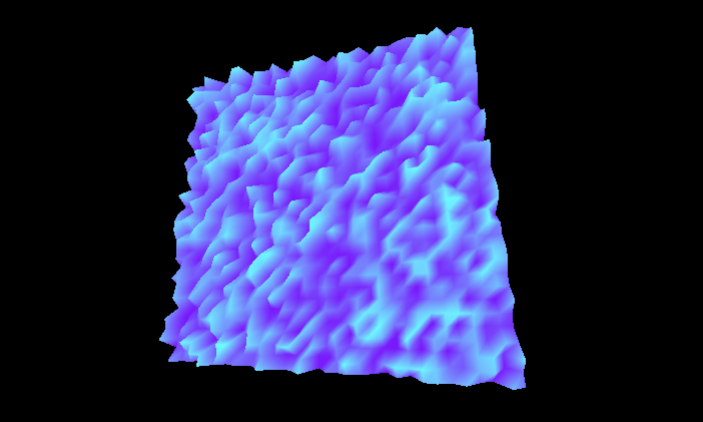
7. Attribute 추가하기 (예: 정점별 랜덤 값)
js attribute -> vertex shader에서만 값을 얻을 수 있음.
// PlaneGeometry 생성: 33 x 33 개의 정점 생성됨
const geometry = new THREE.PlaneGeometry(1, 1, 32, 32);

// position attribute의 정점 개수 확인(33 * 33 = 1089)
const count = geometry.attributes.position.count; // vertex 개수

// 정점 수만큼 랜덤값을 담을 Float32Array 생성 / 32비트의 1089개의 요소를 담을 수 있는 배열
const randoms = new Float32Array(count);

// 각 정점에 대해 랜덤값 할당
for (let i = 0; i < count; i++) {
  randoms[i] = Math.random();
}

// 각 정점에 대해 aRandom 속성 추가 (속성 이름, 속성)
geometry.setAttribute('aRandom', new THREE.BufferAttribute(randoms, 1));
셰이더에서 사용:
// Vertext.glsl
attribute float aRandom;

void main()
{
    // 랜덤한 z값으로 정점 흔들기
    modelPosition.z += aRandom * 0.1;
}
8. Varying: 정점 데이터를 프래그먼트로 전달
varying을 통해 vertex -> fragment로 값을 전달 할 수 있음
// Vertex Shader
varying float vRandom;

void main() {
    vRandom = aRandom;
}
// Fragment Shader
varying float vRandom;

void main() {
    gl_FragColor = vec4(0.5, vRandom, 1.0, 1.0); // 초록색 채널만 랜덤
}
9. Uniform: 자바스크립트에서 GLSL로 값 전달
uniforms는 vertex, fragment 모두 값을 전달 할 수 있음
🎛 JS 측:
uniforms: {
  uFrequency: { value: new THREE.Vector2(10, 5) },
  uTime: { value: 0 },
  uColor: { value: new THREE.Color('orange') }
}
🧬 Vertex Shader:
uniform vec2 uFrequency;
uniform float uTime;

float elevation = sin(modelPosition.x * uFrequency.x - uTime) * 0.1;
elevation += sin(modelPosition.y * uFrequency.y - uTime) * 0.1;
modelPosition.z += elevation;

varying float vElevation;
vElevation = elevation;
🎨 Fragment Shader:
uniform sampler2D uTexture;
varying vec2 vUv;
varying float vElevation;

void main()
{
    vec4 textureColor = texture2D(uTexture, vUv);
    textureColor.rgb *= vElevation * 2.0 + 0.5;
    gl_FragColor = textureColor;
}
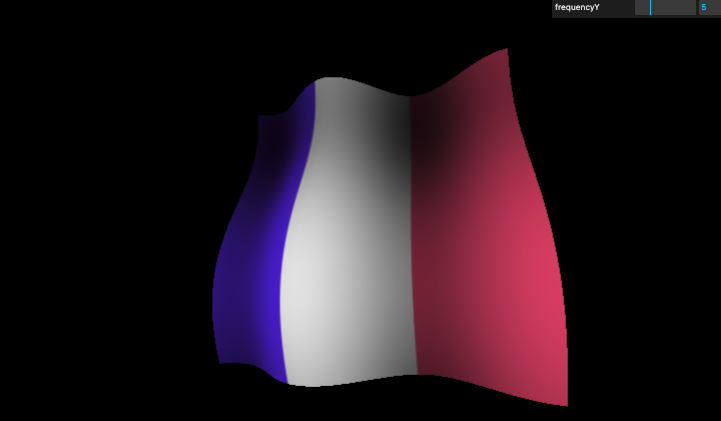
10. Texture 사용하기
const flagTexture = textureLoader.load('/textures/flag-french.jpg');

uniforms: {
  uTexture: {
    value: flagTexture;
  }
}
셰이더에서 UV 사용:
attribute vec2 uv;
varying vec2 vUv;

vUv = uv
uv는 attribute 값이므로 varying 키워드로 vertex -> fragment로 전달
uniform sampler2D uTexture;
vec4 textureColor = texture2D(uTexture, vUv);
gl_FragColor = textureColor;
11. ShaderMaterial 사용하기
- RawShaderMaterial → 저수준, 모든 uniform/attribute 명시해야 함. 구성 파악을 위해 사용을 권장
// RawShaderMaterial - vertex.glsl
uniform mat4 projectionMatrix; // 카메라 투영 행렬
uniform mat4 viewMatrix;       // 카메라 뷰 행렬
uniform mat4 modelMatrix;      // 모델 변환 행렬
uniform vec2 uFrequency;
uniform float uTime;

attribute vec3 position;       // 정점 위치 (매 정점마다 다름)
attribute vec2 uv;

varying vec2 vUv;
varying float vElevation;

void main(){
  vec4 modelPosition = modelMatrix * vec4(position, 1.0);
  modelPosition.z += sin(modelPosition.x * uFrequency.x + uTime) * 0.1;
  modelPosition.z += sin(modelPosition.y * uFrequency.y + uTime) * 0.1;

  float elevation = sin(modelPosition.x * uFrequency.x + uTime) * 0.1;
  elevation += sin(modelPosition.y * uFrequency.y + uTime) * 0.1;

  modelPosition.z += elevation;

  vec4 viewPosition = viewMatrix * modelPosition;
  vec4 projectionPosition = projectionMatrix * viewPosition;

  gl_Position = projectionPosition; // 최종 화면 좌표

  vUv = uv;
  vElevation = elevation; // 명암 조절을 위한 변수
}- ShaderMaterial → 자동으로 추가됨
// ShaderMaterial - vertex.glsl
uniform vec2 uFrequency;
uniform float uTime;

varying vec2 vUv;
varying float vElevation;

void main(){
  vec4 modelPosition = modelMatrix * vec4(position, 1.0);

  modelPosition.z += sin(modelPosition.x * uFrequency.x + uTime) * 0.1;
  modelPosition.z += sin(modelPosition.y * uFrequency.y + uTime) * 0.1;

  float elevation = sin(modelPosition.x * uFrequency.x + uTime) * 0.1;
  elevation += sin(modelPosition.y * uFrequency.y + uTime) * 0.1;

  modelPosition.z += elevation;

  vec4 viewPosition = viewMatrix * modelPosition;
  vec4 projectionPosition = projectionMatrix * viewPosition;

  gl_Position = projectionPosition; // 최종 화면 좌표

  vUv = uv;
  vElevation = elevation; // 명암 조절을 위한 변수 전달
}
const material = new THREE.ShaderMaterial({
vertexShader,
fragmentShader,
uniforms: {
uTime: { value: 0 },
uColor: { value: new THREE.Color('red') },
},
});
12. 디버깅 팁
- Semicolon 빠짐 → 에러 발생 위치 콘솔 확인
- Fragment Shader에서 값을 시각화:
gl_FragColor = vec4(vUv, 0.0, 1.0);
- ShaderMaterial로 바꾸면 기본 uniform과 precision 자동 설정
🔗 참고 자료
// shader/vertex.glsl
uniform mat4 projectionMatrix; // 카메라 투영 행렬
uniform mat4 viewMatrix;       // 카메라 뷰 행렬
uniform mat4 modelMatrix;      // 모델 변환 행렬
// view + model을 합쳐서 modelViewMatrix로도 표현 가능
// uniform mat4 modelViewMatrix;
// (최적화를 위해 model과 view를 미리 곱한 값)
uniform vec2 uFrequency;
uniform float uTime;

attribute vec3 position;       // 정점 위치 (매 정점마다 다름)
// attribute float aRandom; // 추가된 속성 aRandom
attribute vec2 uv;

// varying float vRandom; // vertex에서 fragment 전파용 변수
varying vec2 vUv;
varying float vElevation;

void main(){
  // 1)
  // gl_Position = projectionMatrix * viewMatrix * modelMatrix * vec4(position, 1.0); // 최종 화면 좌표

  // 2)
  // gl_Position = projectionMatrix * modelViewMatrix * vec4(position, 1.0); // 최종 화면 좌표

  // 3)
  vec4 modelPosition = modelMatrix * vec4(position, 1.0);
  // modelPosition.z += sin(modelPosition.x * 5.0) * 0.1; // z축으로 물결 만들기
  // modelPosition.z += aRandom * 0.1;
  modelPosition.z += sin(modelPosition.x * uFrequency.x + uTime) * 0.1;
  modelPosition.z += sin(modelPosition.y * uFrequency.y + uTime) * 0.1;

  float elevation = sin(modelPosition.x * uFrequency.x + uTime) * 0.1;
  elevation += sin(modelPosition.y * uFrequency.y + uTime) * 0.1;

  modelPosition.z += elevation;

  vec4 viewPosition = viewMatrix * modelPosition;
  vec4 projectionPosition = projectionMatrix * viewPosition;

  gl_Position = projectionPosition; // 최종 화면 좌표

  // vRandom = aRandom; // 값 담기
  vUv = uv;
  vElevation = elevation; // 명암 조절을 위한 변수
}
// shader/fragment.glsl
// highp: 고정밀, 성능 이슈
// mediump: 일반적으로
// lowp: 이동 시 정밀함이 떨어짐.
precision mediump float;
uniform vec3 uColor;
uniform sampler2D uTexture;
// varying float vRandom; // vertex에서 전파받은 vRandom
varying vec2 vUv;
varying float vElevation;
void main() {
vec4 textureColor = texture2D(uTexture, vUv);
// gl_FragColor = vec4(uColor, 1.0); // r, g, b, a
// a 1.0 이하 적용하려면 Material에서 transparent = true
textureColor.rgb *= vElevation * 2.0 + 0.5;
gl_FragColor = textureColor;
}// script.js
import * as THREE from 'three';
import { OrbitControls } from 'three/examples/jsm/controls/OrbitControls.js';
import GUI from 'lil-gui';
import testVertexShader from './shader/test/vertex.glsl';
import testFragmentShader from './shader/test/fragment.glsl';
/**
* Base
*/
// Debug
const gui = new GUI();
// Canvas
const canvas = document.querySelector('canvas.webgl');
// Scene
const scene = new THREE.Scene();
/**
* Textures
*/
const textureLoader = new THREE.TextureLoader();
const flagTexture = textureLoader.load('/textures/flag-french.jpg');
/**
* Test mesh
*/
// Geometry
// PlaneGeometry 생성: 33 x 33 개의 정점 생성됨
const geometry = new THREE.PlaneGeometry(1, 1, 32, 32);
// position attribute의 정점 개수 확인(33 * 33 = 1089)
const count = geometry.attributes.position.count; // vertex 개수
// 정점 수만큼 랜덤값을 담을 Float32Array 생성 / 32비트의 1089개의 요소를 담을 수 있는 배열
const randoms = new Float32Array(count);
// 각 정점에 대해 랜덤값 할당
for (let i = 0; i < count; i++) {
randoms[i] = Math.random();
}
// 각 정점에 대해 aRandom 속성 추가 (속성 이름, 속성)
geometry.setAttribute('aRandom', new THREE.BufferAttribute(randoms, 1));
// Material
const material = new THREE.RawShaderMaterial({
vertexShader: testVertexShader,
fragmentShader: testFragmentShader,
// wireframe: true,
// side: THREE.DoubleSide,
uniforms: {
uFrequency: { value: new THREE.Vector2(10, 5) }, // texture -> vertex
uTime: { value: 0 }, // texture -> vertex
uColor: { value: new THREE.Color('orange') }, // texture -> fragment
uTexture: { value: flagTexture }, // texture -> fragment
},
});
// const material = new THREE.ShaderMaterial({
// vertexShader: testVertexShader,
// fragmentShader: testFragmentShader,
// uniforms: {
// uFrequency: { value: new THREE.Vector2(10, 5) }, // texture -> vertex
// uTime: { value: 0 }, // texture -> vertex
// uColor: { value: new THREE.Color('orange') }, // texture -> fragment
// uTexture: { value: flagTexture }, // texture -> fragment
// },
// });
gui
.add(material.uniforms.uFrequency.value, 'x')
.min(0)
.max(20)
.step(0.01)
.name('frequencyX');
gui
.add(material.uniforms.uFrequency.value, 'y')
.min(0)
.max(20)
.step(0.01)
.name('frequencyY');
// Mesh
const mesh = new THREE.Mesh(geometry, material);
scene.add(mesh);
/**
* Sizes
*/
const sizes = {
width: window.innerWidth,
height: window.innerHeight,
};
window.addEventListener('resize', () => {
// Update sizes
sizes.width = window.innerWidth;
sizes.height = window.innerHeight;
// Update camera
camera.aspect = sizes.width / sizes.height;
camera.updateProjectionMatrix();
// Update renderer
renderer.setSize(sizes.width, sizes.height);
renderer.setPixelRatio(Math.min(window.devicePixelRatio, 2));
});
/**
* Camera
*/
// Base camera
const camera = new THREE.PerspectiveCamera(
75,
sizes.width / sizes.height,
0.1,
100,
);
camera.position.set(0.25, -0.25, 1);
scene.add(camera);
// Controls
const controls = new OrbitControls(camera, canvas);
controls.enableDamping = true;
/**
* Renderer
*/
const renderer = new THREE.WebGLRenderer({
canvas: canvas,
});
renderer.setSize(sizes.width, sizes.height);
renderer.setPixelRatio(Math.min(window.devicePixelRatio, 2));
/**
* Animate
*/
const clock = new THREE.Clock();
const tick = () => {
const elapsedTime = clock.getElapsedTime();
// Update material
material.uniforms.uTime.value = elapsedTime;
// Update controls
controls.update();
// Render
renderer.render(scene, camera);
// Call tick again on the next frame
window.requestAnimationFrame(tick);
};
tick();'Graphic > ThreeJS' 카테고리의 다른 글
| 29 Animated Water Shader (2) | 2025.08.04 |
|---|---|
| 28 Shader patterns (4) | 2025.08.04 |
| 26. 프로젝트 구조화(Code structuring for bigger projects) (4) | 2025.08.02 |
| 25 Realistic render (2) | 2025.07.31 |
| 24 Environment Map (3) | 2025.07.31 |


