
R3F + drei Helpers
1. 개요
- R3F는 Three.js를 선언형(Declarative) 방식으로 다루게 해 줍니다.
- 커뮤니티에서 만든 다수의 helper 컴포넌트/훅이 @react-three/drei로 모여 있어, 카메라 제어, 지오메트리, 포스트 프로세싱, HTML 오버레이, 로더, 환경 설정, 수학 유틸 등을 손쉽게 붙일 수 있습니다.
- 모든 것을 깊게 테스트할 필요는 없지만, 무엇이 가능한지를 알아두면 재발명을 피하고 개발 속도를 크게 올릴 수 있습니다.
2. 기본 세팅
- 씬 요소: Sphere, Cube, Floor(Plane)
- 라이트: DirectionalLight, AmbientLight
- 카메라 제어: 이후 섹션에서 <OrbitControls />(drei) 로 교체
// 설계 의도: R3F에서 three.js의 명령형 코드를 선언형으로 치환
// - mesh/geometry/material 트리만 선언하면 R3F가 생성/추가/속성 적용을 reconcile

export default function Experience() {
  return (
    <>
      <directionalLight position={[1, 2, 3]} intensity={4.5} />
      <ambientLight intensity={1.5} />

      <mesh position-x={-2}>
        <sphereGeometry />
        <meshStandardMaterial color="orange" />
      </mesh>

      <mesh position-x={2} scale={1.5}>
        <boxGeometry />
        <meshStandardMaterial color="mediumpurple" />
      </mesh>

      <mesh position-y={-1} rotation-x={-Math.PI * 0.5} scale={10}>
        <planeGeometry />
        <meshStandardMaterial color="greenyellow" />
      </mesh>
    </>
  );
}
3. OrbitControls (카메라 궤도 제어)
왜 쓰나 (구조상의 이유)
- 카메라 회전/이동/줌을 사용자 입력으로 쉽게 제어합니다.
- drei 버전은 기본 damping 활성화와 프레임별 업데이트 처리를 내부에서 해 줍니다.
설치 & 사용
npm i @react-three/drei@10.0
import { OrbitControls } from '@react-three/drei';

export default function Experience() {
  return (
    <>
      <OrbitControls />
      {/* makeDefault를 주면 씬의 기본 카메라 컨트롤로 설정 */}
      {/* ...기타 메쉬/라이트 */}
    </>
  );
}
주요 파라미터 (역할/타입)
- makeDefault: boolean — 씬의 기본 컨트롤러로 등록 (다른 컨트롤과 충돌 방지에 유용)
- enableDamping: boolean — 부드러운 관성 효과. drei 래퍼는 일반적으로 켜져 있음
- target: [number, number, number] — 카메라가 바라보는 중심점
- minDistance / maxDistance: number — 카메라 거리 제한
- enablePan / enableZoom / enableRotate: boolean — 제스처 허용 여부
4. TransformControls (객체 변환 Gizmo)
왜 쓰나
- Position/Rotation/Scale를 씬 내에서 Gizmo로 직접 조작할 수 있습니다.
- 디버깅/에디팅 UI로 유용합니다.
기본 사용 (그룹 래핑 방식)
import { TransformControls, OrbitControls } from '@react-three/drei';

export default function Experience() {
  return (
    <>
      <OrbitControls makeDefault />

      {/* TransformControls 안에 메쉬를 넣으면 '자식'이 되어 위치가 상대 오프셋이 됩니다 */}
      <TransformControls>
        <mesh position-x={2} scale={1.5}>
          <boxGeometry />
          <meshStandardMaterial color="mediumpurple" />
        </mesh>
      </TransformControls>
    </>
  );
}
위치 오프셋 문제 해결 ①: 위치를 부모(TransformControls)로 이동
<TransformControls position-x={2}>
  <mesh scale={1.5}>
    <boxGeometry />
    <meshStandardMaterial color="mediumpurple" />
  </mesh>
</TransformControls>
위치 오프셋 문제 해결 ②: ref로 외부 객체 연결
import { useRef } from 'react';
import { TransformControls } from '@react-three/drei';

export default function Experience() {
  const cube = useRef(); // (type: MutableRefObject<THREE.Mesh | undefined>)

  return (
    <>
      <mesh ref={cube} position-x={2} scale={1.5}>
        <boxGeometry />
        <meshStandardMaterial color="mediumpurple" />
      </mesh>

      {/* object prop으로 대상 메쉬를 지정 → TransformControls와 메쉬의 독립성 유지 */}
      <TransformControls object={cube} />
    </>
  );
}
OrbitControls와 드래그 충돌 해결
<OrbitControls makeDefault />;
{
  /* makeDefault를 주면 TransformControls 드래그 시 자동으로 OrbitControls 비활성 */
}
주요 파라미터
- object: RefObject<THREE.Object3D> — 변환 대상 객체(권장)
- mode: "translate" | "rotate" | "scale" — 조작 모드 (기본 translate)
- showX/Y/Z: boolean — 축별 Gizmo 표시
5. PivotControls (새로운 스타일의 피벗 Gizmo)
왜 쓰나
- 시각적으로 현대적이고, 엔드유저용 인터랙션에도 어울리는 Gizmo
- anchor 기반으로 객체 로컬 포인트에 피벗을 정확히 배치
사용 예
import { PivotControls, OrbitControls } from '@react-three/drei';

export default function Experience() {
  return (
    <>
      <OrbitControls makeDefault />

      {/* 기본은 객체처럼 씬에서 가려질 수 있음(depth test) */}
      <PivotControls anchor={[0, 0, 0]} depthTest={false}>
        <mesh position-x={-2}>
          <sphereGeometry />
          <meshStandardMaterial color="orange" />
        </mesh>
      </PivotControls>
    </>
  );
}
주요 파라미터
- anchor: [number, number, number] — 로컬 기준점(예: [0,1,0]은 상단)
- depthTest: boolean — 다른 오브젝트 뒤에서도 보이게 할지
- lineWidth: number — Gizmo 라인 두께
- axisColors: [string, string, string] — 축 색상
- scale: number — Gizmo 크기(픽셀 또는 월드, fixed에 따라 다름)
- fixed: boolean — 화면 픽셀 고정 크기 모드 (UI 일관성에 유리)
6. Html (3D 객체에 붙는 DOM 라벨)
왜 쓰나
- 3D 객체에 DOM 요소(라벨/툴팁/UI) 를 고정할 수 있습니다.
- CSS로 자유롭게 스타일링 가능, occlusion(가림 처리)도 지원.
기본 사용
import { Html } from '@react-three/drei';

<mesh position-x={-2}>
  <sphereGeometry />
  <meshStandardMaterial color="orange" />
  <Html>That's a sphere 👍</Html> {/* 객체에 고정 */}
</mesh>;
오프셋/클래스/중앙 기준/거리 스케일
<Html
  position={[1, 1, 0]} // (type: [x,y,z]) 라벨 오프셋
  wrapperClass="label" // (type: string) CSS 타깃 클래스
  center // (type: boolean) pivot을 중앙으로
  distanceFactor={8} // (type: number) 카메라 거리 기반 크기 보정
  // transform              // (type: boolean) 3D 변환(CSS transform) 사용해 원근감 연동
  // sprite                 // (type: boolean) 카메라를 항상 바라보는 스프라이트 모드
  // zIndexRange={[100,0]}  // (type: [number, number]) 포탈 z-index 범위 제어
  // portal={domNode}       // (type: HTMLElement) 특정 DOM 노드로 포탈 렌더링
>
  That's a sphere 👍
</Html>
/* style.css */
.label > div {
  font-family: Helvetica, Arial;
  position: absolute;
  background: #00000088;
  color: white;
  padding: 15px;
  white-space: nowrap;
  overflow: hidden;
  border-radius: 30px;
  user-select: none;
}
가림(occlude)
import { useRef } from 'react';

const sphere = useRef();
const cube = useRef();

<mesh ref={sphere} position-x={-2}>...</mesh>
<mesh ref={cube} position-x={2}>...</mesh>

<Html
  wrapperClass="label"
  center
  occlude={[sphere, cube]} // (type: RefObject[] | boolean) 가려지면 자동 숨김
>
  That's a sphere 👍
</Html>
7. Text (SDF 기반 텍스트 렌더링)
왜 쓰나
- 전통적인 3D TextGeometry의 폴리곤/성능/줄바꿈 문제를 해결.
- SDF(Signed Distance Field) 를 활용하여 크게 확대해도 선명, 두께/블러 등 후처리에 유리.
핵심 개념: SDF
- 각 글자에 대해 거리 정보 텍스처를 생성하고, 픽셀이 글자 경계에 얼마나 가까운지로 렌더링 결정을 내림.
- 결과적으로 두께 조절, 외곽 블러, 대형 텍스트에 유리.
사용 예
import { Text } from '@react-three/drei';

<Text
  font="./bangers-v20-latin-regular.woff" // (type: string) public/ 기준 폰트 경로 (woff/ttf/otf)
  fontSize={1}                            // (type: number) 월드 단위 폰트 크기
  color="salmon"                          // (type: string|number) 머티리얼 색
  position-y={2}                          // (type: number) 대시-케이스로 부분 축 지정
  maxWidth={2}                            // (type: number) 래핑 폭(월드 단위)
  textAlign="center"                      // (type: 'left'|'right'|'center'|'justify') 정렬

  letterSpacing={0.02}                    // (type: number) 글자 간격(월드 단위)
  lineHeight={1.0}                        // (type: number) 행간(폰트 크기 대비 배수 느낌)
  anchorX="center"                        // (type: number|'left'|'center'|'right') X 기준점
  anchorY="middle"                        // (type: number|'top'|'middle'|'bottom'|'baseline' 등) Y 기준점
  overflowWrap="break-word"               // (type: 'normal'|'break-word') 단어 단위 줄바꿈 방식
  whiteSpace="normal"                     // (type: 'normal'|'nowrap'|'pre'...) CSS white-space 유사 동작
  direction="auto"                        // (type: 'auto'|'ltr'|'rtl') 텍스트 방향
  outlineWidth={0.04}                     // (type: number) 외곽선(SDF outline) 두께
  outlineColor="#000000"                  // (type: string|number) 외곽선 색
  outlineOpacity={0.6}                    // (type: number) 외곽선 불투명도
  curveRadius={0}                         // (type: number) >0이면 해당 반경으로 곡면에 따라 휘어짐
  // clipRect={[x1, y1, x2, y2]}          // (type: [number,number,number,number]) 이 사각형으로 클리핑
  // characters="ILOVE R3F"               // (type: string) 사용할 글자만 사전 로딩(아틀라스 최적화)
>
  I LOVE R3F
  {/* 커스텀 머티리얼을 넣을 수도 있음(필요 시) */}
  {/* <meshBasicMaterial wireframe /> */}
</Text>
포맷: woff/ttf/otf 지원(가벼운 woff 권장). 폰트 라이선스를 항상 확인하세요.
- 커스텀 머티리얼도 가능하지만, 기본 머티리얼이 대부분의 경우 충분합니다.
<Html> (DOM (ReactDOM 포털)) vs <Text> (WebGL(3D 씬 내부))
- 디자인 시스템/CSS 활용/반응형/접근성(스크린리더 등) 중요 → <Html>
- PBR 재질/그림자/포스트프로세싱/오클루전 중요 → <Text>
- 성능: 대규모 텍스트는 <Text>가 유리. 소량의 라벨/버튼은 <Html>이 개발 생산성↑
- 항상 같은 화면 크기: <Html>이 직관적(또는 <PivotControls fixed>처럼 픽셀 고정 개념)
8. Float (부유 애니메이션)
왜 쓰나
- 오브젝트를 풍선처럼 둥실 떠다니게 하는 간단한 효과.
import { Float, Text } from '@react-three/drei';

<Float speed={5} floatIntensity={2}>
  <Text font="./bangers-v20-latin-regular.woff" fontSize={1} textAlign="center">
    I LOVE R3F
  </Text>
</Float>;
주요 파라미터
- speed: number — 애니메이션 속도
- floatIntensity: number — 상하동 진폭(부유 강도)
- rotationIntensity: number — 회전 강도(옵션)
9. MeshReflectorMaterial (간단한 반사 바닥)
왜 쓰나
- 평면(Plane) 등에 거울 같은 반사를 손쉽게 구현.
- 평면에 최적화되어 있으며, 복잡한 메시에선 제한적.
import { MeshReflectorMaterial } from '@react-three/drei';

<mesh position-y={-1} rotation-x={-Math.PI * 0.5} scale={10}>
  <planeGeometry />
  <MeshReflectorMaterial
    resolution={512} // (type: number) 반사 텍스처 해상도
    blur={[1000, 1000]} // (type: [width, height]) 블러 강도
    mixBlur={1} // (type: number) 반사와 블러 혼합 정도
    mirror={0.5} // (type: number) 반사 강도(거울 느낌)
    color="greenyellow" // (type: string|number) 바닥 틴트
  />
</mesh>;
10. 더 알아보기 / 팁
- 대시-케이스 프로퍼티: position-x, rotation-y 등으로 부분 축만 지정 가능 (내부적으로 object.position.x = ...).
- OrbitControls vs 직접 카메라 조작: 동시 사용 시 충돌 → 한쪽만 사용하거나 makeDefault로 제어.
- flat 렌더링: 톤매핑/감마 보정 없이 있는 그대로 출력. UI/HUD나 후처리 직접 제어 시 유용.
- BufferGeometry 동적 업데이트: attribute.needsUpdate = true, 필요 시 computeVertexNormals() 호출.
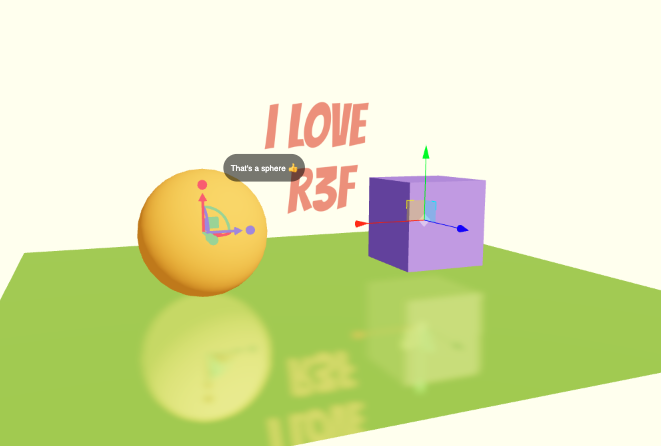
// index.jsx
import './style.css'
import ReactDOM from 'react-dom/client'
import { Canvas } from '@react-three/fiber'
import Experience from './Experience.jsx'

const root = ReactDOM.createRoot(document.querySelector('#root'))

root.render(
    <Canvas
        camera={ {
            fov: 45,
            near: 0.1,
            far: 200,
            position: [ - 4, 3, 6 ]
        } }
    >
        <Experience />
    </Canvas>
)
// Experience.jsx
import {
MeshReflectorMaterial,
Float,
Html,
PivotControls,
TransformControls,
OrbitControls,
Text,
} from '@react-three/drei';
import { useRef } from 'react';
export default function Experience() {
const cube = useRef();
const sphere = useRef();
return (
<>
<OrbitControls
makeDefault // 다른 controls와 달리 기본값으로 지정(모두 비활성화 시 동작)
/>
<directionalLight position={[1, 2, 3]} intensity={4.5} />
<ambientLight intensity={1.5} />
<PivotControls
anchor={[0, 0, 0]} // 객체를 중심으로 위치 지정
depthTest={false} // mesh에 가려지지 않도록 설정
lineWidth={4} // 선 굵기
axisColors={['#9381ff', '#ff4d6d', '#7ae582']} // 선 색상 지정
scale={60} // 크기 (fixed일 경우 월드 기준이 아니고 화면 기준(픽셀)이므로 60이상 설정)
fixed={true} // 카메라 거리/줌과 무관하게 항상 같은 픽셀 크기로
>
<mesh ref={sphere} position-x={-2}>
<sphereGeometry />
<meshStandardMaterial color="orange" />
<Html
position={[1, 1, 0]} // 위치
wrapperClass="label" // wrapper div에 class 지정
center // 중앙정렬
distanceFactor={6} // 거리 기반 크기 보정
occlude={[sphere, cube]} // 가려지면 숨기기
>
That's a sphere 👍
</Html>
</mesh>
</PivotControls>
{/* <TransformControls> */}
<mesh ref={cube} position-x={2} scale={1.5}>
<boxGeometry />
<meshStandardMaterial color="mediumpurple" />
</mesh>
{/* </TransformControls> */}
<TransformControls object={cube} />
<mesh position-y={-1} rotation-x={-Math.PI * 0.5} scale={10}>
<planeGeometry />
{/* <meshStandardMaterial color="greenyellow" /> */}
<MeshReflectorMaterial
resolution={512} // 반사 해상도
blur={[1000, 1000]} // blur = [width, height]
mixBlur={1} // 바닥과 blur 섞는 정도
mirror={0.5} // 비침 정도
color="greenyellow" // 색
/>
</mesh>
<Float speed={5} floatIntensity={2}>
<Text
font="./bangers-v20-latin-regular.woff" // 폰트 지정
fontSize={1}
color="salmon"
position-y={1}
maxWidth={2} // line break
textAlign="center">
I LOVE R3F
{/* <meshNormalMaterial /> */}
</Text>
</Float>
</>
);
}/* style.css */
html,
body,
#root {
position: fixed;
top: 0;
left: 0;
width: 100%;
height: 100%;
background: ivory;
}
.label > div {
font-family: Helvetica, Arial;
position: absolute;
background: #00000088;
color: white;
padding: 15px;
white-space: nowrap;
overflow: hidden;
border-radius: 30px;
user-select: none;
}'Graphic > R3F' 카테고리의 다른 글
| 정적 렌더링을 통해 원하는 시기에만 frame 갱신하기 (frameloop="demand") (7) | 2025.08.16 |
|---|---|
| 57 R3F Debug (7) | 2025.08.15 |
| 55 R3F Application 기초 (5) | 2025.08.15 |
| 53, 54 React와 React Three Fiber (9) | 2025.08.11 |
| react-three/drei (1) | 2025.06.09 |

