
R3F 디버깅 & 모니터링 (StrictMode · React DevTools · Leva · r3f-perf)
1. 개요
- 목표: 오류를 빨리 찾고, 원인 파악 시간을 줄이며, 프레임 드랍의 이유를 추적할 수 있는 작업 환경을 만든다.
- 도구 구성
- React 쪽: StrictMode, React Developer Tools(브라우저 확장)
- R3F 쪽: Leva(Debug UI), r3f-perf(실시간 성능 패널)
- 기본 씬: Sphere, Cube, 녹색 Floor(Plane), @react-three/drei 설치되어 있고 카메라는 <OrbitControls />로 조작.
2. StrictMode — 리액트 잠재 버그 조기 경고
왜 필요한가
- 잠재적 문제를 개발 중에 경고로 알려준다: Unused import, 무한 렌더 루프, useEffect 누락 deps, Deprecated 사용 등.
- Production 빌드에는 영향 없음(무시됨).
// 설계 의도: 앱 전체를 StrictMode로 감싸 개발 중 잠재적 문제를 조기 탐지
import { StrictMode } from 'react';
import { Canvas } from '@react-three/fiber';
import Experience from './Experience';

root.render(
  <StrictMode>
    <Canvas
      camera={{
        fov: 45, // (type: number) 원근 카메라 시야각(도 단위)
        near: 0.1, // (type: number) 근평면
        far: 50, // (type: number) 원평면
        position: [-4, 3, 6], // (type: [number,number,number]) 카메라 위치
      }}>
      <Experience />
    </Canvas>
  </StrictMode>,
);
참고(중요)
- React 18 Dev 모드에서는 StrictMode가 일부 라이프사이클/이펙트를 의도적으로 두 번 호출하여 부작용(side-effect)을 검출합니다.
→ idempotent(부작용 없음) 코드를 작성하세요(예: setInterval 정리 철저, 외부 상태 변이 금지).
3. React Developer Tools — 컴포넌트 트리 & props/state 실시간 확인
설치/사용
- 브라우저 확장: Chrome/Firefox의 “React Developer Tools” 설치 후, 앱 탭을 새로고침.
- DevTools의 ⚛️ Components 탭에서 컴포넌트 트리, props/state를 확인하고 직접 수정 가능.
R3F 주의점
- <mesh>, <meshStandardMaterial> 등 R3F의 three 객체 자체는 트리에 보이지 않을 수 있음.
→ R3F를 감싸는 사용자 컴포넌트의 props/state를 확인/수정하는 방식으로 디버깅.
4. Leva — 선언형 Debug UI (슬라이더/토글/컬러/버튼/셀렉트/폴더)
설치
npm install leva@0.10
기본 사용 — 숫자 슬라이더로 Sphere X 위치 제어
// 설계 의도: useControls hook으로 Debug UI를 선언형으로 만들고 상태 ↔ 씬 속성을 양방향으로 동기화
import { useControls } from 'leva';

export default function Experience() {
  // (type: object) useControls의 schema 정의
  // - key: UI 항목 이름
  // - value: 초기값 또는 { value, min, max, step, ... } 같은 상세 옵션
  const { position } = useControls({
    position: { value: -2, min: -4, max: 4, step: 0.01 }, // (number) 슬라이더
  });

  return (
    <mesh position={[position, 0, 0]}>
      {' '}
      {/* position-x 대신 배열로 매핑 */}
      <sphereGeometry />
      <meshStandardMaterial color="orange" />
    </mesh>
  );
}
Vector2/Vector3, 조이스틱, 축 반전
const { position } = useControls({
  position: {
    value: { x: -2, y: 0 }, // (type: {x:number, y:number}) Vector2
    step: 0.01, // (type: number)
    joystick: 'invertY', // (type: 'invertY' | 'direction') 조이스틱 보조
  },
});
/* ... */
<mesh position={[position.x, position.y, 0]} />;
Color, Boolean, Interval
const { color, visible, range } = useControls({
  color: '#ff0000', // (type: string | {r,g,b,a} 등) 다양한 컬러 포맷
  visible: true, // (type: boolean)
  range: { min: 0, max: 10, value: [4, 5] }, // (type: [number,number]) Interval
});
/* ... */
<mesh visible={visible}>
  <meshStandardMaterial color={color} />
</mesh>;
color formats:
- 'rgb(255, 0, 0)'
- 'orange'
- 'hsl(100deg, 100%, 50%)'
- 'hsla(100deg, 100%, 50%, 0.5)'
- { r: 200, g: 106, b: 125, a: 0.4 }
알파(투명도)는 Three.js에선 material.opacity/transparent로 제어. RGBA의 a값은 자동 반영되지 않을 수 있음.
Button, Select, Folder(그룹)
import { button, useControls } from 'leva';

const { choice } = useControls('sphere', {
  clickMe: button(() => console.log('ok')), // (type: function) 1회성 실행
  choice: { options: ['a', 'b', 'c'] }, // (type: string[]) Select
});

const { scale } = useControls('cube', {
  scale: { value: 1.5, min: 0, max: 5, step: 0.01 }, // 다른 폴더
});
Leva 패널 배치/설정 — 반드시 Canvas 밖에!
// 설계 의도: <Leva>는 DOM(UI) 구성 요소이므로 R3F Canvas 외부에 렌더링
import { StrictMode } from 'react';
import { Leva } from 'leva';
import { Canvas } from '@react-three/fiber';

root.render(
  <StrictMode>
    <Leva collapsed /> {/* (type: boolean) 시작 시 접어서 표시 */}
    <Canvas>{/* ... */}</Canvas>
  </StrictMode>,
);
실전 팁
- Leva 변경 시 리렌더 발생: 변경된 값만 R3F reconciler가 반영하므로 보통 성능 문제 없음.
- 다만 초당 수백 회 갱신 같은 고빈도 업데이트에는 useFrame/refs 기반의 저비용 경로도 고려.
5. r3f-perf — R3F 특화 성능 패널(프레임/드로우콜/메모리 등)
설치
npm install r3f-perf@7.2
사용
// 설계 의도: 성능 지표를 항상 시각화하여 드로우콜/프레임 타임/메모리 변화를 즉시 파악
import { Perf } from 'r3f-perf';

export default function Experience() {
  return (
    <>
      <Perf position="top-left" />
      {/* position: 'top-left' | 'top-right' | 'bottom-left' | 'bottom-right' */}
      {/* ... 씬 구성 ... */}
    </>
  );
}
Leva로 토글하기(추천)
const { perfVisible } = useControls({ perfVisible: true }); // (type: boolean)
{
  perfVisible && <Perf position="top-left" />;
}
지표 예
- fps / frame time, draw calls, geometries/materials, GPU/CPU 관련 지표, 메모리 등
6. 함께 쓰면 좋은 패턴(권장 베이스라인)
- StrictMode 항상 ON(Dev) → 잠재 버그 조기 발견
- React DevTools 상시 설치 → props/state/트리 구조 즉시 확인
- Leva로 주요 튜닝 파라미터 노출 → 색/가시성/위치/스케일/이펙트 강도 등
- r3f-perf로 성능 변화 상시 모니터 → 변경의 영향 즉시 파악
7. 자주 겪는 함정 & 체크리스트
- StrictMode로 인한 이펙트 2회 실행
- useEffect에서 정리 함수(cleanup) 누락 시 부작용/중복 등록 발생.
- Leva 값 변경으로 과도한 리렌더
- 고빈도 애니메이션 파라미터는 useFrame에서 ref.current에 직접 대입하여 오버헤드 최소화.
- React DevTools에서 R3F 노드가 안 보임
- 사용자 컴포넌트 레벨에서 상태/props를 노출하여 간접 관리.
- Perf 패널과 Leva 패널이 겹침
- <Perf position="top-left" />처럼 위치 조정, 혹은 Leva를 collapsed로 시작.
8. 요약(치트시트)
# 설치
npm i leva@0.10 r3f-perf@7.2
# (브라우저) React Developer Tools 설치
// StrictMode
<StrictMode>
  <Canvas>...</Canvas>
</StrictMode>;

// Leva
import { Leva, useControls, button } from 'leva';
<Leva collapsed />;
const { color, visible } = useControls({
  color: '#ff0000', // string | {r,g,b,a}
  visible: true, // boolean
  clickMe: button(() => console.log('ok')),
});

// r3f-perf
import { Perf } from 'r3f-perf';
<Perf position="top-left" />;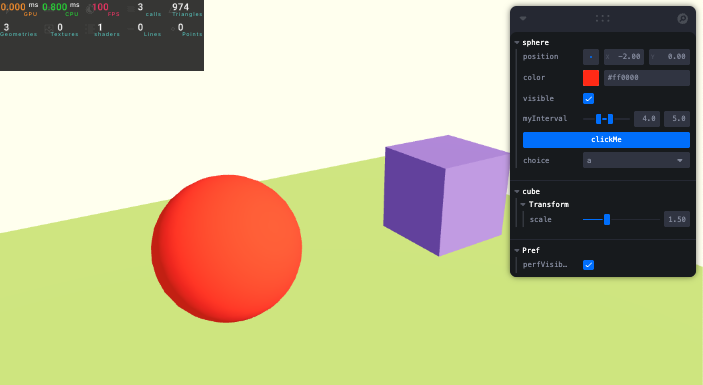
// index.jsx
import './style.css';
import ReactDOM from 'react-dom/client';
import { Canvas } from '@react-three/fiber';
import Experience from './Experience.jsx';
import { StrictMode } from 'react';
import { Leva } from 'leva';

const root = ReactDOM.createRoot(document.querySelector('#root'));

root.render(
  <StrictMode>
    {/* 원래 자동으로 Leva 추가됨.  collapsed = 접기 */}
    <Leva collapsed />
    <Canvas
      camera={{
        fov: 45,
        near: 0.1,
        far: 200,
        position: [-4, 3, 6],
      }}>
      <Experience />
    </Canvas>
  </StrictMode>,
);
// Experience.jsx
import { OrbitControls } from '@react-three/drei';
import { folder, button, useControls } from 'leva';
import { Perf } from 'r3f-perf';
export default function Experience() {
const { perfVisible } = useControls('Pref', {
perfVisible: true,
});
const { position, color, visible } = useControls('sphere', {
position: {
value: { x: -2, y: 0 },
step: 0.01,
joystick: 'invertY',
},
color: 'rgb(255, 0, 0)',
visible: true,
myInterval: {
min: 0,
max: 10,
value: [4, 5],
},
clickMe: button(() => {
console.log('btn');
}),
choice: { options: ['a', 'b', 'c'] },
});
const { scale } = useControls('cube', {
Transform: folder(
{
scale: { value: 1.5, min: 0, max: 5, step: 0.01 }, // (type: number)
},
{ collapsed: false }, // 기본값: 접기(true), 펴기(false)
),
});
return (
<>
{perfVisible && <Perf position="top-left" />}
<OrbitControls makeDefault />
<directionalLight position={[1, 2, 3]} intensity={4.5} />
<ambientLight intensity={1.5} />
<mesh position={[position.x, position.y, 0]} visible={visible}>
<sphereGeometry />
<meshStandardMaterial color={color} />
</mesh>
<mesh position-x={2} scale={scale}>
<boxGeometry />
<meshStandardMaterial color="mediumpurple" />
</mesh>
<mesh position-y={-1} rotation-x={-Math.PI * 0.5} scale={10}>
<planeGeometry />
<meshStandardMaterial color="greenyellow" />
</mesh>
</>
);
}'Graphic > R3F' 카테고리의 다른 글
| 58 R3F Environment and Staging (5) | 2025.08.16 |
|---|---|
| 정적 렌더링을 통해 원하는 시기에만 frame 갱신하기 (frameloop="demand") (7) | 2025.08.16 |
| 56 Drei (2) | 2025.08.15 |
| 55 R3F Application 기초 (5) | 2025.08.15 |
| 53, 54 React와 React Three Fiber (9) | 2025.08.11 |


