
React Three Fiber – Pointer Events (Mouse Events)
이번 레슨은 제목은 mouse events이지만, 실제로는 Pointer Events 전반을 다룹니다. 따라서 마우스뿐 아니라 터치 스크린에서도 동일하게 동작합니다.
1. 기본 Setup
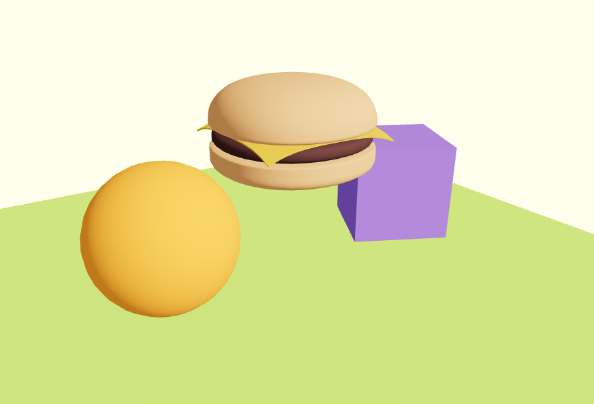
- 주황색 Sphere
- 보라색 Cube (회전 애니메이션)
- 초록색 바닥 (Floor)
- OrbitControls 포함
2. 클릭 이벤트 (onClick)
const cube = useRef();

const eventHandler = () => {
  cube.current.material.color.set(`hsl(${Math.random() * 360}, 100%, 75%)`);
};

<mesh ref={cube} position-x={2} scale={1.5} onClick={eventHandler}>
  <boxGeometry />
  <meshStandardMaterial color="mediumpurple" />
</mesh>;
- onClick → 기본 클릭 이벤트
- 클릭 시 cube.current.material.color.set() 으로 랜덤 색상 변경 가능
3. 이벤트 정보 (event 객체)
const eventHandler = (event) => {
  console.log('distance', event.distance); // 카메라와 교차 지점까지 거리
  console.log('point', event.point); // 교차 지점 (3D 좌표)
  console.log('uv', event.uv); // 메쉬 UV 좌표
  console.log('object', event.object); // 실제 클릭된 오브젝트
  console.log('eventObject', event.eventObject); // 이벤트 리스너를 가진 객체

  console.log('x', event.x, 'y', event.y); // 화면 2D 좌표
  console.log('shift?', event.shiftKey); // 키보드 보조키 상태
};
4. 다양한 Pointer Events
- onContextMenu → 우클릭 / 모바일 길게 누르기
- onDoubleClick → 더블클릭
- onPointerDown / onPointerUp → 클릭/터치 시작/해제
- onPointerEnter / onPointerLeave → 포인터 진입/이탈
- onPointerOver / onPointerOut → 비슷하지만 children 포함 여부 차이 있음
- onPointerMove → 마우스 이동 시 계속 호출
- onPointerMissed → Canvas에 설정, 아무 오브젝트도 클릭되지 않았을 때 실행
<Canvas onPointerMissed={() => console.log('You missed!')}>
  <Experience />
</Canvas>
5. Occlusion (가림 현상)
여러 개의 오브젝트가 겹쳤을 때, 앞쪽 오브젝트가 이벤트를 막을 수 있도록 stopPropagation() 사용.
<mesh
  position-x={-2}
  onClick={(e) => e.stopPropagation()}
  onPointerEnter={(e) => e.stopPropagation()}>
  <sphereGeometry />
  <meshStandardMaterial color="orange" />
</mesh>
6. Cursor 스타일 변경
<mesh
  onPointerEnter={() => (document.body.style.cursor = 'pointer')}
  onPointerLeave={() => (document.body.style.cursor = 'default')}>
  <boxGeometry />
  <meshStandardMaterial color="mediumpurple" />
</mesh>
- pointer → 손가락 아이콘 (링크와 동일)
- default → 기본 커서
Sphere가 Cube를 가릴 때도 커서 변화를 막으려면 stopPropagation() 적용 필요
7. 복잡한 오브젝트 (Hamburger 예제)
const hamburger = useGLTF('./hamburger.glb')

<primitive
  object={hamburger.scene}
  scale={0.25}
  position-y={0.5}
  onClick={(event) => {
    console.log(event.object) // 실제 클릭된 Mesh
    event.stopPropagation()
  }}
/>
- <primitive> → GLTF 전체 모델 삽입
- 내부는 여러 mesh로 구성 → 이벤트가 중첩 발생
- event.stopPropagation() → 첫 번째 충돌 Mesh만 이벤트 발생
8. 성능 최적화 (Performance)
① 이벤트 최소화
- onPointerMove, onPointerOver 같은 매 프레임 검사 이벤트는 최소화
- 불필요하게 많은 오브젝트에 이벤트 등록하지 않기
② meshBounds
- Drei의 meshBounds → 실제 geometry 대신 Bounding Sphere를 사용하여 충돌 검사
- “정확도↓ / 속도↑”의 초간단 광범위(broad-phase) 판정
- “모양이 복잡하지만 클릭만 되면 되는” 버튼/장식/오브젝트.
import { meshBounds } from '@react-three/drei';

<mesh raycast={meshBounds} onClick={eventHandler}>
  <boxGeometry />
  <meshStandardMaterial />
</mesh>;
→ 정밀도가 낮아도 괜찮다면 성능 향상
③ BVH (Bounding Volume Hierarchy)
- Drei의 <Bvh> → 전체 씬의 raycast 최적화
import { Bvh } from '@react-three/drei';

<Canvas>
  <Bvh>
    <Experience />
  </Bvh>
</Canvas>;
- 처음에 boundsTree 생성 시 약간의 지연 발생(초기 빌드 비용)
- 이후 모든 raycasting(pointer event) 성능 대폭 향상
three-mesh-bvh와 @react-three/drei <Bvh />
- @react-three/drei의 <Bvh />는 내부적으로 three-mesh-bvh를 사용하는 래퍼(편의 컴포넌트).
- 저수준: three-mesh-bvh = BVH 구축/가속 레이캐스트를 제공하는 순수 Three.js용 라이브러리.
- 고수준: drei의 <Bvh /> = 자식 메시에 BVH를 자동으로 빌드/해제/옵션적 시각화해 주는 R3F용 헬퍼.
1) 저수준: three-mesh-bvh 직접 쓰기
// 목적: 매우 무거운 지오메트리에 정밀하고 빠른 레이캐스트를 적용
import * as THREE from 'three'
import {
  acceleratedRaycast,     // 레이캐스트 교체 함수
  computeBoundsTree,      // BVH 구축
  disposeBoundsTree       // BVH 해제
} from 'three-mesh-bvh'

// (선택) 전역으로 기본 raycast를 가속 버전으로 교체
THREE.Mesh.prototype.raycast = acceleratedRaycast

// geometry가 준비된 뒤 한 번만 빌드
computeBoundsTree(geometry)           // (geometry: THREE.BufferGeometry)

// 필요 시 정리
disposeBoundsTree(geometry)

// 동적 변형 후엔 전체 재빌드보단 "리핏" 사용 가능
geometry.boundsTree?.refit()
주요 함수(매개변수: 역할/타입)
- computeBoundsTree(geometry: BufferGeometry, options?)
→ 지오메트리에 BVH 트리를 생성해 raycast/쿼리 가속. - disposeBoundsTree(geometry: BufferGeometry)
→ BVH 메모리 해제. - acceleratedRaycast(raycaster, intersects)
→ Mesh.prototype.raycast에 할당하여 가속 레이캐스트 활성화. - geometry.boundsTree?.refit()
→ 정점이 조금 바뀐 경우 빠르게 트리 갱신(완전 재빌드보다 저렴).
장점: 세밀 제어, 고급 쿼리(shapecast 등) 가능.
단점: 수동 세팅/정리가 필요, 코드량↑.
2) 고수준: drei의 <Bvh />
import { Bvh } from '@react-three/drei'

export default function Scene() {
  return (
    <Bvh
      /** 대표적인 props (버전에 따라 다를 수 있음)
       * enabled?: boolean        - 기본값 true, 끄기/켜기
       * firstHitOnly?: boolean   - 가장 가까운 한 개만 반환해 더 빠르게
       * visualize?: boolean      - BVH AABB 시각화(디버깅)
       * // 일부 빌드 옵션 전달 지원 (예: strategy, maxLeafTris 등)
       */
      firstHitOnly
      visualize={false}
    >
      {/* 이 안의 모든 mesh geometry에 BVH가 자동 적용/해제 */}
      <mesh geometry={heavyGeometry} onPointerDown={(e) => console.log(e.point)}>
        <meshStandardMaterial color="orange" />
      </mesh>
      {/* ...수백 개의 무거운 메시들 */}
    </Bvh>
  )
}
- 설계 의도: R3F에서 “이 부분 서브트리 다 가속해줘”를 한 줄로 처리.
- 구조상의 이유: 마운트 시 자식들을 순회해 computeBoundsTree를 걸고, 언마운트 시 정리.
- 주의: 실시간 변형(스컬핑/디폼)처럼 지오메트리가 계속 바뀌면 리핏/재빌드 전략이 필요. 이 경우 라이브러리 API를 직접 쓰는 편이 더 유연합니다.
언제 무엇을 고르나?
- R3F 프로젝트에서 “그냥 이 묶음 전체 레이캐스트 빠르게” → <Bvh /> (간편·안전)
- 특수 쿼리/미세 제어/동적 리핏이 필요 → three-mesh-bvh 직접 사용
- 아주 가벼운 클릭 판정만 필요 → drei의 **<MeshBounds />**가 더 단순/초고속
함께 쓰면 좋은 패턴
- Broad → Narrow 단계화
- <MeshBounds />로 후보군 빠르게 추리기(넓은 영역, 대략).
- 후보에만 BVH 정밀 레이캐스트 적용(좁은 영역, 정확). → 대규모 씬에서도 정확도와 성능 모두 확보.
📌 핵심 요약
- Pointer Events: onClick, onPointerDown, onPointerEnter 등 다양한 이벤트 제공
- event 객체: 3D 좌표, UV, 충돌 오브젝트 등 정보 확인 가능
- Propagation 제어: event.stopPropagation()으로 뒤 오브젝트 클릭 차단
- Cursor UX 개선: document.body.style.cursor 또는 useCursor
- 복잡한 모델: <primitive>는 children까지 이벤트 발생 → stopPropagation 활용
- 성능 최적화: meshBounds (Bounding Sphere), <Bvh> (BVH 구조)
import './style.css';
import ReactDOM from 'react-dom/client';
import { Canvas } from '@react-three/fiber';
import Experience from './Experience.jsx';
import { Bvh } from '@react-three/drei';

const root = ReactDOM.createRoot(document.querySelector('#root'));

root.render(
  <Canvas
    camera={{
      fov: 45,
      near: 0.1,
      far: 200,
      position: [-4, 3, 6],
    }}
    onPointerMissed={() => {
      console.log('miss');
    }}>
    <Bvh>
      <Experience />
    </Bvh>
  </Canvas>,
);
import { useFrame } from '@react-three/fiber';
import { meshBounds, OrbitControls, useGLTF } from '@react-three/drei';
import { useRef } from 'react';
export default function Experience() {
const cube = useRef();
const model = useGLTF('./hamburger.glb');
useFrame((state, delta) => {
cube.current.rotation.y += delta * 0.2;
});
const eventHandler = (event) => {
cube.current.material.color.set(`hsl(${Math.random() * 360}, 100%, 75%)`);
};
return (
<>
<OrbitControls makeDefault />
<directionalLight position={[1, 2, 3]} intensity={4.5} />
<ambientLight intensity={1.5} />
<mesh
position-x={-2}
onClick={(event) => event.stopPropagation()} // 구체 뒤에 cube가 있을 때는 cube 이벤트를 막음
>
<sphereGeometry />
<meshStandardMaterial color="orange" />
</mesh>
<mesh
ref={cube}
raycast={meshBounds}
position-x={2}
scale={1.5}
onClick={eventHandler}
onPointerEnter={() => {
document.body.style.cursor = 'pointer';
}}
onPointerLeave={() => {
document.body.style.cursor = 'default';
}}>
<boxGeometry />
<meshStandardMaterial color="mediumpurple" />
</mesh>
<mesh position-y={-1} rotation-x={-Math.PI * 0.5} scale={10}>
<planeGeometry />
<meshStandardMaterial color="greenyellow" />
</mesh>
<primitive
object={model.scene}
scale={0.25}
position-y={0.5}
onClick={(event) => {
event.stopPropagation();
console.log(event.object.name); // mata.userData={{name}}
// console.log(event.eventObject); // Group
}}
/>
</>
);
}'Graphic > R3F' 카테고리의 다른 글
| 64 Laptop Scene (1) | 2025.08.18 |
|---|---|
| 63 후처리(Post Processing) (5) | 2025.08.18 |
| 61 Portal Scene (0) | 2025.08.18 |
| 60 3D Text (6) | 2025.08.18 |
| 59 Load models(GLTF 모델 로딩과 애니메이션) (2) | 2025.08.18 |


