
React Three Fiber – Post Processing
Post Processing을 R3F(@react-three/postprocessing)에서 어떻게 활용하는지, 기본 효과부터 커스텀 효과까지 단계적으로 다룹니다.
이전 Three.js 방식과 비교했을 때 성능적 최적화와 개발 편의성이 큰 차이점입니다.
1. 기존 문제점
- 전통적인 방식: 여러 Pass를 쌓아 올리는 방식
- 각 Pass가 별도의 렌더링을 수행 → 중복 렌더링 발생 (depth, normal 등)
- Pass가 많아질수록 성능 저하 → FPS 하락
2. 해결책 – Post Processing
- Pass → Effect 개념으로 단순화
- 여러 Effect가 자동으로 병합되어 최소한의 Pass만 실행
- Effect 순서는 유지, 개별 blending 방식 지정 가능
- R3F에서는 @react-three/postprocessing으로 손쉽게 적용
npm install @react-three/postprocessing3. Setup & Tone Mapping
npm install postprocessingimport { EffectComposer, ToneMapping } from '@react-three/postprocessing';
import { ToneMappingMode } from 'postprocessing';
<EffectComposer>
<ToneMapping mode={ToneMappingMode.ACES_FILMIC} />
</EffectComposer>;
- 기본 ToneMapping → AgX (다소 회색빛)
- ToneMappingMode.ACES_FILMIC 사용 시 R3F 기본 색감과 동일
- 멀티샘플링(multisampling) 기본값 8 (안티에일리어싱 역할)
Postprocessing
Home | postprocessing
Post Processing A post processing library for three.js. Demo · Sandbox · Documentation · Wiki Installation This library requires the peer dependency three. npm install three postprocessing Usage Post processing introduces the concept of pass
pmndrs.github.io
React Postprocessing
Introduction - React Postprocessing
What is React Postprocessing and how you can use it
react-postprocessing.docs.pmnd.rs
4. 주요 Effects 예제
🎬 Vignette (비네트)
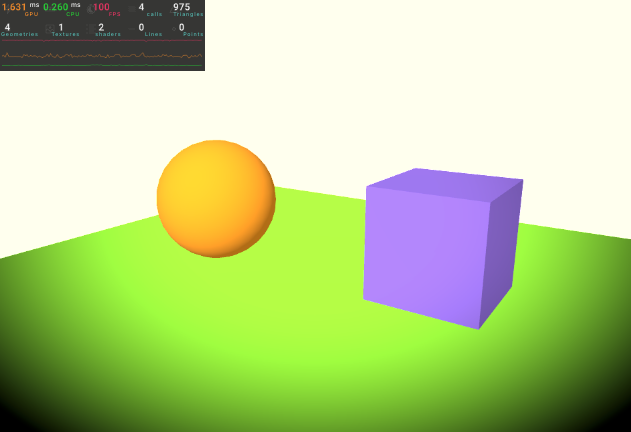
import { Vignette } from '@react-three/postprocessing';

<Vignette offset={0.3} darkness={0.9} />;- 화면 모서리를 어둡게 처리
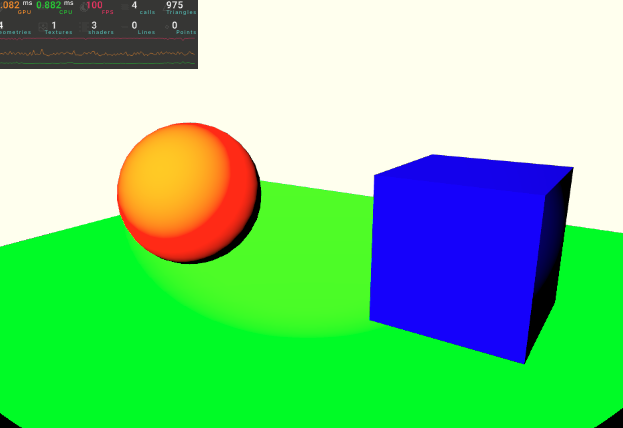
import { Vignette } from '@react-three/postprocessing';
import { BlendFunction } from 'postprocessing';

    <Vignette
      offset={0.3}
      darkness={0.9}
      blendFunction={BlendFunction.COLOR_BURN}
    />
🎬 Glitch (글리치)
import { Glitch } from '@react-three/postprocessing';
import { GlitchMode } from 'postprocessing';

<Glitch
  delay={[0.5, 1]}
  duration={[0.1, 0.3]}
  strength={[0.2, 0.4]}
  mode={GlitchMode.CONSTANT_MILD}
/>;
- 영화 해킹 장면 같은 랜덤 화면 깨짐
🎬 Noise (노이즈)

import { Noise } from '@react-three/postprocessing';
import { BlendFunction } from 'postprocessing';

<Noise premultiply blendFunction={BlendFunction.SOFT_LIGHT} />;
- 화면에 노이즈(잡음) 추가
- premultiply → 색상에 곱 연산 적용
🎬 Bloom (블룸)
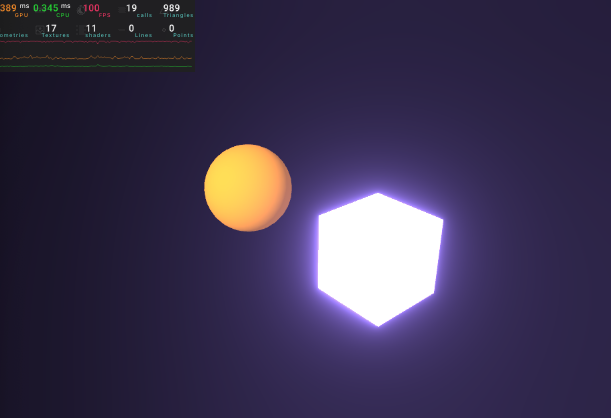
import { Bloom } from '@react-three/postprocessing';

<Bloom mipmapBlur intensity={0.5} luminanceThreshold={1.1} />;
- 밝은 영역을 부드럽게 번지게 → “빛 번짐 효과”
- mipmapBlur → 성능 좋은 블러 기법 (mipmap 기반)
- 재질 설정:→ Emissive, RGB > 1 값 사용 가능
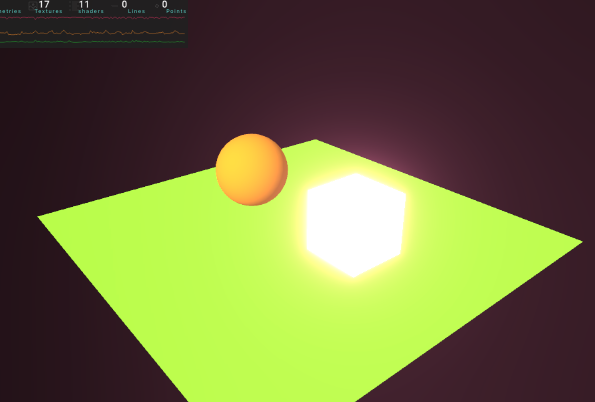
<meshStandardMaterial color={[4,1,2]} />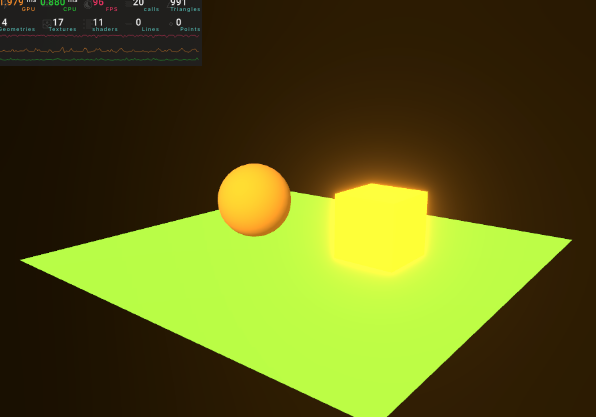
<meshStandardMaterial color="orange" emissive="orange" emissiveIntensity={2} />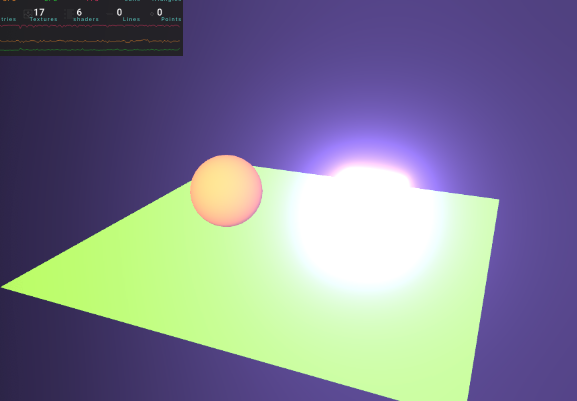
<meshBasicMaterial color={[1.5 * 10, 1 * 10, 4 * 10]} toneMapped={false} />예시와 다르게 적당한 값으로 사용하는 게 좋음.
🎬 DepthOfField (심도 효과)
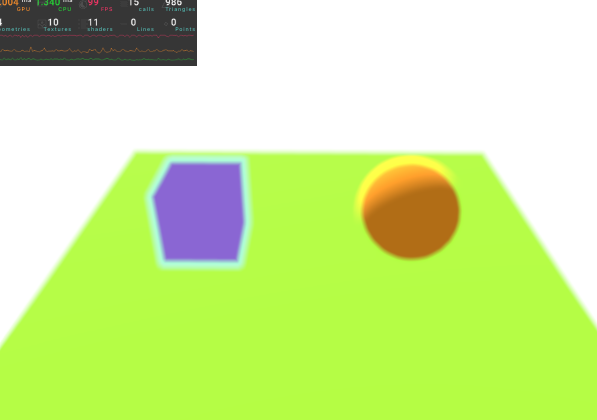
<DepthOfField focusDistance={0.025} focalLength={0.025} bokehScale={6} />
- 초점 거리 이외의 영역을 블러 처리
- 값은 camera.near ~ camera.far 구간을 0~1로 정규화
5. 성능
- 여러 효과를 동시에 켜도 EffectComposer가 자동으로 Shader 병합
- 성능 부담은 줄지만, Glitch/Noise 같은 실시간 연산 효과는 주의 필요
- 기본적인 최적화는 ToneMapping 유지
6. 커스텀 Effect 만들기 (DrunkEffect)
Custom Effects
A post processing library for three.js. Contribute to pmndrs/postprocessing development by creating an account on GitHub.
github.com
Step 1. Postprocessing Effect 정의
// DrunkEffect.jsx
import { Effect } from 'postprocessing';
import { Uniform } from 'three';
import { BlendFunction } from 'postprocessing';

const fragmentShader = /* glsl */ `
  uniform float frequency;
  uniform float amplitude;
  uniform float time;

  void mainUv(inout vec2 uv) {
    uv.y += sin(uv.x * frequency + time) * amplitude;
  }

  void mainImage(const in vec4 inputColor, const in vec2 uv, out vec4 outputColor) {
    vec4 color = inputColor;
    color.rgb *= vec3(0.8, 1.0, 0.5); // 초록빛
    outputColor = color;
  }
`;

export default class DrunkEffect extends Effect {
  constructor({
    frequency = 2,
    amplitude = 0.1,
    blendFunction = BlendFunction.DARKEN,
  }) {
    super('DrunkEffect', fragmentShader, {
      blendFunction,
      uniforms: new Map([
        ['frequency', new Uniform(frequency)],
        ['amplitude', new Uniform(amplitude)],
        ['time', new Uniform(0)],
      ]),
    });
  }

  update(renderer, inputBuffer, deltaTime) {
    this.uniforms.get('time').value += deltaTime;
  }
}
Step 2. R3F Component로 래핑
// Drunk.jsx
import DrunkEffect from './DrunkEffect.jsx';

export default function Drunk(props) {
  const effect = new DrunkEffect(props);
  return <primitive ref={props.ref} object={effect} />;
}
Step 3. 적용
import Drunk from './Drunk.jsx'
import { useRef } from 'react'
import { useControls } from 'leva'

const drunkRef = useRef()
const drunkProps = useControls('Drunk Effect', {
  frequency: { value: 2, min: 1, max: 20 },
  amplitude: { value: 0.1, min: 0, max: 1 }
})

<EffectComposer>
  <Drunk ref={drunkRef} {...drunkProps} />
  <ToneMapping mode={ToneMappingMode.ACES_FILMIC} />
</EffectComposer>
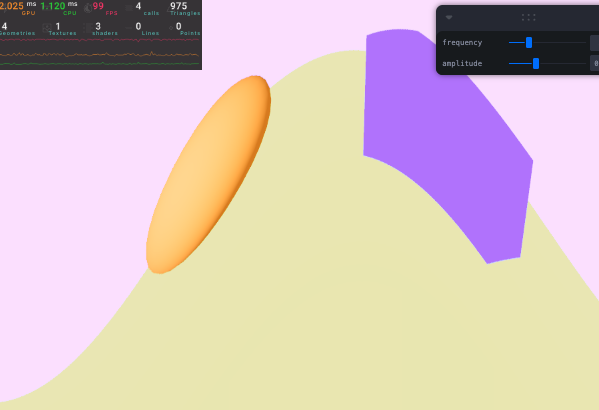
→ 이제 Leva UI에서 실시간 조정 가능 🎛️
📌 핵심 요약
- Postprocessing: Pass → Effect 구조로 단순화, 성능 최적화
- 주요 효과: Vignette, Glitch, Noise, Bloom, DepthOfField
- 성능 관리: 멀티샘플링, mipmapBlur, Effect 병합 최적화
- 커스텀 효과: Postprocessing Effect → R3F Component → Props/Uniforms/Ref 전달 → update로 애니메이션
import { OrbitControls } from '@react-three/drei';
import { Perf } from 'r3f-perf';
import { useRef } from 'react';
import {
  ToneMapping,
  EffectComposer,
  Vignette,
  Glitch,
  Noise,
  Bloom,
  DepthOfField,
} from '@react-three/postprocessing';
import { BlendFunction, GlitchMode, ToneMappingMode } from 'postprocessing';
import Drunk from './Drunk';
import { useControls } from 'leva';

export default function Experience() {
  const drunkRef = useRef(); // (타입: React.RefObject<Effect> 유사) 외부에서 이펙트에 접근하려면 ref 필요

  // Leva: UI 슬라이더로 frequency/amplitude 제어
  const drunkProps = useControls({
    frequency: { value: 2, min: 1, max: 20 }, // 역할:number 물결 주파수(uv.x 기준)
    amplitude: { value: 0.1, min: 0, max: 1 }, // 역할:number 물결 진폭(uv.y 변위량)
  });

  return (
    <>
      {/* 배경색(톤매핑 등 후처리에 들어가기 전 clear 색상) */}
      <color args={['#fff']} attach="background" />

      {/* 🎛 Postprocessing 파이프라인: 위에서 아래 순서대로 적용 */}
      <EffectComposer /* multisampling={0} → MSAA 비활성(성능↑) */>
        {/* 톤매핑(색역/밝기 매핑). ACES는 영화적/자연스러운 하이라이트 롤오프 */}
        <ToneMapping mode={ToneMappingMode.ACES_FILMIC} />

        {/* 아래 효과들은 예시. 필요할 때만 활성화해서 오버드로우/성능 관리 */}
        {/* <Vignette offset={0.3} darkness={0.9} blendFunction={BlendFunction.NORMAL} /> */}
        {/* <Glitch delay={[0.5, 1]} duration={[0.1, 0.3]} strength={[0.2, 0.4]} mode={GlitchMode.CONSTANT_WILD} /> */}
        {/* <Noise premultiply blendFunction={BlendFunction.SOFT_LIGHT} />  // premultiply 철자 주의 */}
        {/* <Bloom mipmapBlur luminanceThreshold={1.1} intensity={0.1} /> */}
        {/* <DepthOfField focusDistance={0.025} focalLength={0.025} bokehScale={6} /> */}

        {/* 커스텀 이펙트: 화면 전체 UV 왜곡 + 블렌딩 모드 설정 */}
        <Drunk
          ref={drunkRef}
          {...drunkProps}
          blendFunction={BlendFunction.DIVIDE} // 역할: BlendFunction - 합성 방식(밝은 느낌, 대비 강함)
        />
      </EffectComposer>

      <Perf position="top-left" />
      <OrbitControls makeDefault />

      {/* 씬 조명 */}
      <directionalLight castShadow position={[1, 2, 3]} intensity={4.5} />
      <ambientLight intensity={1.5} />

      {/* 테스트용 지오메트리들 */}
      <mesh castShadow position-x={-2}>
        <sphereGeometry />
        <meshStandardMaterial color="orange" />
      </mesh>

      <mesh castShadow position-x={2} scale={1.5}>
        <boxGeometry />
        {/* meshBasicMaterial: 라이팅/톤매핑 비적용. 색이 “그대로” 출력됨 */}
        <meshBasicMaterial color="mediumpurple" toneMapped={false} />
      </mesh>

      <mesh
        receiveShadow
        position-y={-1}
        rotation-x={-Math.PI * 0.5}
        scale={10}>
        <planeGeometry />
        <meshStandardMaterial color="greenyellow" />
      </mesh>
    </>
  );
}
import { forwardRef, useMemo, useEffect } from 'react';
import DrunkEffect from './DrunkEffect';
/**
* 설계 의도: 부모가 ref로 이펙트에 접근 가능 + props 변경 시 효율적 업데이트
* 구조상의 이유: forwardRef로 ref 포워딩, useMemo로 객체 재생성 최소화
*/
const Drunk = forwardRef(function Drunk(props, ref) {
const { frequency = 2, amplitude = 0.1, blendFunction } = props;
// DrunkEffect 인스턴스는 필요한 경우에만 새로 만든다
const effect = useMemo(
() => new DrunkEffect({ frequency, amplitude, blendFunction }),
[frequency, amplitude, blendFunction],
);
// (선택) props가 자주 바뀌는데 인스턴스 생성을 아예 피하고 싶다면:
// useEffect(() => {
// effect.uniforms.get('frequency').value = frequency;
// effect.uniforms.get('amplitude').value = amplitude;
// }, [frequency, amplitude, effect]);
return <primitive ref={ref} object={effect} />;
});
export default Drunk;import { Effect, BlendFunction } from 'postprocessing';
import { Uniform } from 'three';
const fragmentShader = /* glsl */ `
uniform float frequency; // 물결 주파수 (타입: float)
uniform float amplitude; // 물결 진폭 (타입: float)
uniform float offset; // 시간 오프셋 (타입: float) → update에서 누적
// UV 왜곡 훅: 텍스처를 샘플링하기 "직전"에 UV를 바꿉니다.
void mainUv(inout vec2 uv)
{
// x에 따라 y를 사인 곡선으로 흔들어 물결 효과 생성
uv.y += sin(uv.x * frequency + offset) * amplitude;
}
// 픽셀 셰이딩 훅: inputColor는 이미 가공된 프레임버퍼의 색
void mainImage(const in vec4 inputColor, const in vec2 uv, out vec4 outputColor)
{
// (1) 틴트만 적용하려면 다음과 같이 곱셈이 일반적:
// vec4 color = inputColor;
// color.rgb *= vec3(0.8, 1.0, 0.5);
// outputColor = color;
// (2) 현재 코드는 inputColor를 무시하고 "순수 색"을 출력:
outputColor = vec4(0.8, 1.0, 0.5, inputColor.a);
// → 화면 전체가 연두색으로 채워짐(왜곡은 UV에 적용되지만 결과 색은 이 값).
// 원본 장면 색을 살리고 싶으면 (1)처럼 inputColor를 기반으로 가공하는 게 일반적입니다.
}
`;
export default class DrunkEffect extends Effect {
/**
* @param {object} options
* @param {number} options.frequency - 물결 주파수
* @param {number} options.amplitude - 물결 진폭(0~1 권장)
* @param {BlendFunction} [options.blendFunction=BlendFunction.DARKEN] - 합성 모드
*/
constructor({
frequency = 2,
amplitude = 0.1,
blendFunction = BlendFunction.DARKEN,
}) {
super('DrunkEffect', fragmentShader, {
blendFunction,
uniforms: new Map([
['frequency', new Uniform(frequency)],
['amplitude', new Uniform(amplitude)],
['offset', new Uniform(0)],
]),
});
}
/**
* 매 프레임 호출: 시간 누적
* @param {THREE.WebGLRenderer} renderer
* @param {THREE.WebGLRenderTarget} inputBuffer
* @param {number} deltaTime - 이전 프레임과의 시간 간격(초)
*/
update(renderer, inputBuffer, deltaTime) {
this.uniforms.get('offset').value += deltaTime;
}
}
'Graphic > R3F' 카테고리의 다른 글
| 65 React Three Rapier (13) | 2025.08.19 |
|---|---|
| 64 Laptop Scene (1) | 2025.08.18 |
| 62 Pointer Events (Mouse Events) (7) | 2025.08.18 |
| 61 Portal Scene (0) | 2025.08.18 |
| 60 3D Text (6) | 2025.08.18 |


