
Portfolio with Laptop Scene
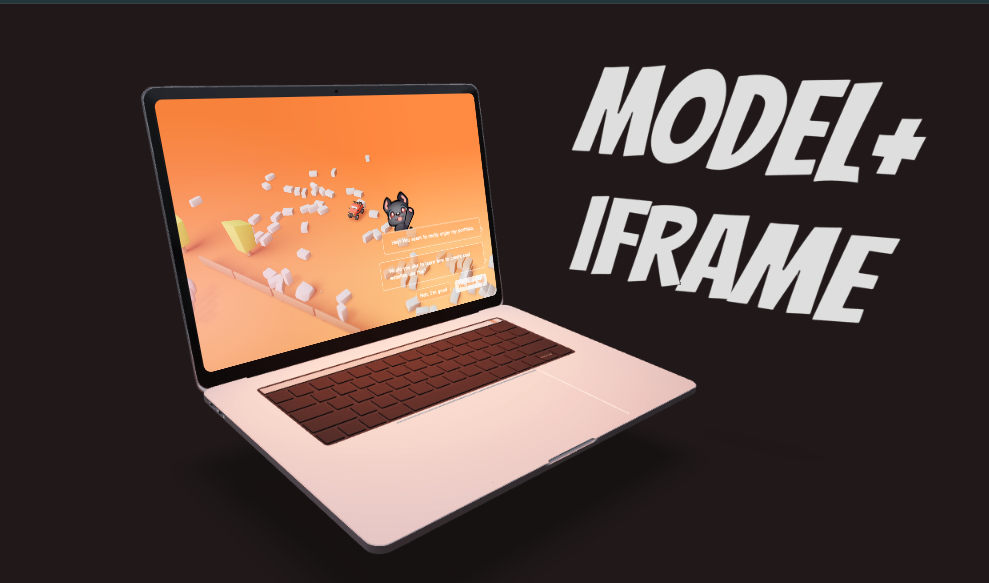
이번 레슨에서는 HTML/CSS로 만든 포트폴리오 사이트를 3D 노트북 화면 속에 넣는 방식을 배웁니다.
이 방법은 단순히 3D 모델을 보여주는 것이 아니라, 자신의 웹사이트를 WebGL 장면 속에서 인터랙티브하게 시각화할 수 있는 강력한 포트폴리오 아이디어입니다.
🎯 핵심 목표
- 배경을 어둡게 설정 → 콘텐츠 강조
- 노트북 3D 모델 불러오기 (useGLTF)
- 환경광 + 그림자 + 애니메이션으로 사실감 추가
- PresentationControls로 카메라 대신 모델 제어
- <Html> + <iframe>으로 실제 웹사이트를 화면에 넣기
- 조명(rectAreaLight)과 텍스트(Text)로 디테일 강화
1. Setup
// Experience.jsx
import {
  useGLTF,            // GLTF 모델 로딩 훅
  Environment,        // HDRI 환경맵 (빛/반사/배경)
  Float,              // 부유 애니메이션 래퍼
  PresentationControls, // 드래그/회전 제어 (orbit-like)
  ContactShadows,     // 평면 그림자
  Html,               // 3D 공간에 HTML 고정
  Text,               // 3D 텍스트
} from '@react-three/drei';

export default function Experience() {
  // useGLTF(url: string) → { scene, nodes, materials }
  // - glTF/GLB 모델을 비동기로 로딩
  const computer = useGLTF(
    'https://vazxmixjsiawhamofees.supabase.co/.../macbook/model.gltf',
  );

  return (
    <>
      {/* Scene 배경색
          - <color attach="background" /> → 씬의 배경을 특정 색으로 지정
          - args: [r,g,b] 또는 hex string */}
      <color args={['#241a1a']} attach="background" />

      {/* Environment (HDRI 환경맵)
          - preset: "city", "sunset", "night", "dawn", "warehouse", "forest" 등 미리 정의된 HDRI */}
      <Environment preset="city" />

      {/* PresentationControls
          - 모델을 드래그로 회전/줌 할 수 있게 하는 컨트롤
          props:
          - global: boolean → 씬 전체에 적용
          - rotation: [x,y,z] 초기 회전값 (rad)
          - polar: [min,max] 세로 회전 제한 (위/아래)
          - azimuth: [min,max] 가로 회전 제한 (좌/우)
          - config: spring 물리 효과 { mass, tension, friction }
          - snap: boolean → 놓았을 때 스냅(원위치) */}
      <PresentationControls
        global
        rotation={[0.13, 0.1, 0]}
        polar={[-0.4, 0.2]} // 위로 0.2rad, 아래로 -0.4rad 까지 제한
        azimuth={[-1, 0.75]} // 왼쪽 -1rad, 오른쪽 0.75rad 제한
        config={{ mass: 2, tension: 400 }}
        snap
      >
        {/* Float
            - children을 천천히 부유(floating)하는 애니메이션
            props:
            - rotationIntensity: number (기본 1) → 얼마나 회전하며 부유할지
            - floatIntensity: number → 상하 이동 강도
            - speed: number → 움직임 속도 */}
        <Float rotationIntensity={0.4}>
          {/* rectAreaLight
              - 사각형 모양의 면광 (네온사인, 모니터광 표현에 유용)
              props:
              - width, height: number → 빛의 면적
              - intensity: number → 광원 세기
              - color: string | THREE.Color
              - rotation: [x,y,z] 라디안 회전값
              - position: [x,y,z] 위치 */}
          <rectAreaLight
            width={2.5}
            height={1.65}
            intensity={65}
            color={'#ff6900'}
            rotation={[-0.1, Math.PI, 0]}
            position={[0, 0.55, -1.15]}
          />

          {/* GLTF 모델 삽입
              - <primitive object={computer.scene} />
              - object: THREE.Object3D → GLTF의 루트 오브젝트
              - position-y={-1.2}: 모델을 y축 아래로 내림 */}
          <primitive object={computer.scene} position-y={-1.2}>
            {/* Html
                - 3D 오브젝트 위에 실제 DOM 요소 삽입 (iframe, div 등)
                props:
                - transform: boolean → 3D 변환을 적용 (크기/회전)
                - wrapperClass: string → CSS className
                - distanceFactor: number → 카메라 거리 기반 scale 보정
                - position: [x,y,z] → 3D 위치
                - rotation-x: number → x축 회전 */}
            <Html
              transform
              wrapperClass="htmlScreen"
              distanceFactor={1.17}
              position={[0, 1.56, -1.4]}
              rotation-x={-0.256}
            >
              {/* Html 내부에는 일반 HTML 요소 가능 */}
              <iframe src="https://bruno-simon.com/html/" />
            </Html>
          </primitive>

          {/* Text
              - drei에서 제공하는 텍스트 컴포넌트
              props:
              - font: string → 폰트 파일 경로 (.woff, .ttf)
              - fontSize: number → 글자 크기
              - position: [x,y,z] → 위치
              - rotation-y: number → y축 회전
              - maxWidth: number → 최대 줄바꿈 폭 */}
          <Text
            font="./bangers-v20-latin-regular.woff"
            fontSize={1}
            position={[2, 0.75, 0.75]}
            rotation-y={-1.25}
            maxWidth={2}
          >
            BRUNO SIMON
          </Text>
        </Float>
      </PresentationControls>

      {/* ContactShadows
          - 바닥에 "soft shadow" 생성
          props:
          - position-y: number → 그림자 평면의 높이
          - opacity: number → 그림자 투명도
          - scale: number
2. CSS 설정
/* iframe 스타일링 */
.htmlScreen iframe {
  width: 1024px;
  height: 670px;
  border: none;
  border-radius: 20px; /* 약간의 곡선 처리 */
  background: #000; /* 로딩 전 대비 */
}

/* 모바일 제스처 충돌 방지 */
.r3f {
  touch-action: none;
}
3. 주요 개념 정리
🔹 PresentationControls
- global: 화면 전체에서 드래그 가능
- polar: 세로 회전 제한 [min, max]
- azimuth: 가로 회전 제한 [min, max]
- damping: 애니메이션 반응 속도
- snap: 원위치로 돌아오는 효과
🔹 <Html> (drei)
- 3D 오브젝트에 HTML 요소를 붙일 수 있는 헬퍼
- transform: 실제 3D 좌표/회전을 따르도록 변환
- wrapperClass: CSS 적용을 위한 클래스
- distanceFactor: 크기 조정 (가까운/먼 거리 보정)
🔹 ContactShadows
- 바닥에 간단하고 성능 좋은 그림자 표현
- opacity, scale, blur로 조절 가능
🔹 rectAreaLight
- 사각형 면광 → 화면 발광 효과 표현
- width, height로 크기 조정
- intensity, color로 빛 성질 조절
🔹 Text (drei)
- 3D 텍스트 렌더링
- font, fontSize, maxWidth, textAlign 지원
- .woff 같은 웹폰트 사용 가능
4. UX 개선 아이디어
- 로딩 후 객체가 등장하는 인트로 애니메이션
- 마우스 hover 시 카메라 줌인
- iframe 내 CSS 개선 및 모바일 대응
- 반사 표현, 사운드, 배경 오브젝트, 파티클 추가
- Easter egg 요소 삽입
요약
- 노트북 모델 + Html iframe 조합으로 웹사이트를 실물처럼 3D에 삽입
- PresentationControls + Float로 자연스러운 조작과 애니메이션 구현
- 조명, 그림자, 텍스트로 사실감과 브랜딩 강화
- CSS + distanceFactor로 iframe의 크기와 품질 최적화
// Experience
import {
  Html,
  ContactShadows,
  PresentationControls,
  Environment,
  Float,
  useGLTF,
  Text,
} from '@react-three/drei';

export default function Experience() {
  const computer = useGLTF(
    'https://threejs-journey.com/resources/models/macbook_model.gltf',
  );

  return (
    <>
      <Environment preset="city" />

      <color args={['#241a1a']} attach="background" />

      {/* PresentationControls 카메라 대신 모델을 조작 */}
      <PresentationControls
        global
        rotation={[0.13, 0.1, 0]}
        polar={[-0.4, 0.2]} // 세로 제한
        azimuth={[-1, 0.75]} // 가로 제한
        damping={0.1} // 움직임 속도
        config={{ mass: 2, tension: 400 }}
        snap>
        <Float rotationIntensity={0.4}>
          {/* Light */}
          <rectAreaLight
            width={2.5}
            height={1.65}
            intensity={65}
            color={'#ff6900'}
            rotation={[0.1, Math.PI, 0]}
            position={[0, 0.55, -1.15]}
          />
          {/* Model */}
          <primitive object={computer.scene} position-y={-1.2}>
            <Html
              wrapperClass="htmlScreen"
              transform
              distanceFactor={1.17}
              position={[0, 1.56, -1.4]}
              rotation-x={-0.256}>
              <iframe src="https://bruno-simon.com/html" />
            </Html>
          </primitive>

          {/* Text */}
          <Text
            font="./bangers-v20-latin-regular.woff"
            fontSize={1}
            position={[2, 0.75, 0.75]}
            rotation-y={-1.25}
            // children={'iframe\nTEST'}
            maxWidth={2}
            textAlign="center">
            Model+ Iframe
          </Text>
        </Float>
      </PresentationControls>

      <ContactShadows position-y={-1.4} opacity={0.4} scale={5} blur={2.4} />
    </>
  );
}
/* CSS */
html,
body,
#root {
position: fixed;
top: 0;
left: 0;
width: 100%;
height: 100%;
background: ivory;
}
/* 모바일에서 제스처 충돌 막기 (슬라이드 시 리로딩 같은)*/
.r3f {
touch-action: none;
}
.htmlScreen iframe {
/* 내부 스크린 해상도 확보 width, height */
width: 1024px;
height: 670px;
border: none;
border-radius: 20px;
background: #000;
}'Graphic > R3F' 카테고리의 다른 글
| 66 Mini-Game: Marble Race (2) | 2025.08.20 |
|---|---|
| 65 React Three Rapier (13) | 2025.08.19 |
| 63 후처리(Post Processing) (5) | 2025.08.18 |
| 62 Pointer Events (Mouse Events) (7) | 2025.08.18 |
| 61 Portal Scene (0) | 2025.08.18 |


