
React Three Rapier 정리 (Physics in R3F)
1. Cannon.js → Rapier
- Cannon.js / cannon-es: 오래된 물리 엔진, PMNDRS에서 fork(cannon-es) 유지 중.
- Rapier:
- 2019년 Rust로 작성 → WebAssembly 덕분에 브라우저에서 거의 네이티브 성능.
- Determinism: 동일 조건 → 모든 기기에서 동일한 결과.
- 2D/3D 모두 지원.
- Three.js에 종속되지 않음 (독립 엔진).
- 공식 사이트: rapier.rs
2. React Three Rapier
- PMNDRS 팀이 R3F에 Rapier를 래핑한 라이브러리.
- 설치:→ 특정 버전 고정 (버그 최소화 목적).
npm install @react-three/rapier@2.03. 기본 사용법
<Physics>
import { Physics } from '@react-three/rapier';

<Physics>{/* 여기에 들어오는 모든 객체는 물리 시뮬레이션 적용 */}</Physics>;
<RigidBody>
import { RigidBody } from '@react-three/rapier';

<Physics>
  {/* 동적 객체 (기본값: dynamic) */}
  <RigidBody>
    <mesh castShadow position={[-2, 2, 0]}>
      <sphereGeometry />
      <meshStandardMaterial color="orange" />
    </mesh>
  </RigidBody>

  {/* 고정 객체 (type="fixed") */}
  <RigidBody type="fixed">
    <mesh receiveShadow position-y={-1.25}>
      <boxGeometry args={[10, 0.5, 10]} />
      <meshStandardMaterial color="greenyellow" />
    </mesh>
  </RigidBody>
</Physics>;
- type (string)
- "dynamic" (기본): 중력, 충돌 적용됨.
- "fixed": 움직이지 않는 오브젝트.
- "kinematicPosition" / "kinematicVelocity": 직접 위치·속도를 제어하는 경우.
4. 디버그 모드
<Physics debug>{/* wireframe 형태로 실제 Collider 시각화 */}</Physics>
- 주의: 성능 저하 발생 → 개발 중에만 사용.
5. Collider 종류
자동 생성
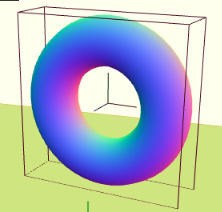
- cuboid (기본값)
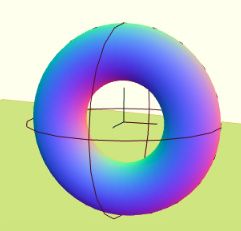
- ball → 구체 충돌
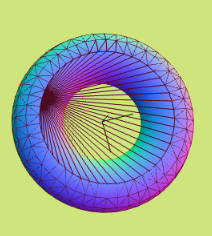
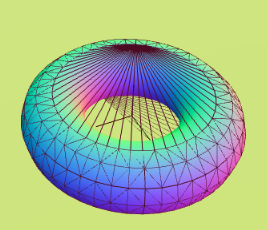
- hull → Convex Hull (구멍 무시), 전체 면을 감싼 모양
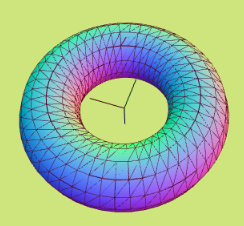
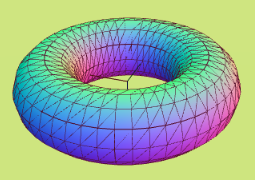
- trimesh → 삼각형 메시 기반 (동적 객체엔 비추천, 성능 이슈)
<RigidBody colliders="ball">
  <mesh>
    <sphereGeometry />
    <meshStandardMaterial color="orange" />
  </mesh>
</RigidBody>
수동 생성
import { CuboidCollider, BallCollider } from '@react-three/rapier';

<RigidBody colliders={false}>
  <mesh>
    <torusGeometry args={[1, 0.5, 16, 32]} />
  </mesh>
  {/* 직접 Collider 추가 */}
  <CuboidCollider args={[1.5, 1.5, 0.5]} />
  <BallCollider args={[1.5]} />
</RigidBody>;
- collider는 scale을 따로 설정할 수 없음.
- 기본적으로 cube가 적용되어 있으므로 colliders={false} 설정 후 적용
- args (Array) → Collider별 고유 파라미터
1. CuboidCollider

- <CuboidCollider args={[x, y, z]} />
- x, y, z: half extents (절반 크기).
- 실제 충돌체의 크기는 2x * 2y * 2z.
- 예: args={[1, 2, 3]} → 실제 크기 = (2, 4, 6).
2. BallCollider
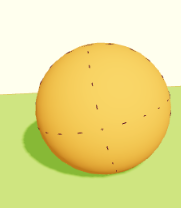
- <BallCollider args={[r]} />
- r: 반지름(radius).
- 예: args={[1.5]} → 반지름 1.5짜리 구 충돌체.
3. CylinderCollider
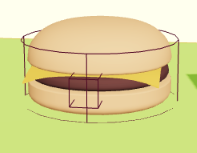
- <CylinderCollider args={[halfHeight, radius]} />
- halfHeight: 중심에서 위·아래로의 절반 높이.
- radius: 원통 반지름.
- 실제 높이는 halfHeight * 2.
6. RigidBody 제어
참조 및 힘/토크 적용
const cube = useRef()

<RigidBody ref={cube} position={[1.5, 2, 0]}>
  <mesh onClick={cubeJump}>
    <boxGeometry />
    <meshStandardMaterial color="mediumpurple" />
  </mesh>
</RigidBody>

const cubeJump = () => {
  // 위쪽으로 순간적인 힘 (Impulse)
  cube.current.applyImpulse({ x: 0, y: 5, z: 0 })
  // 랜덤 회전
  cube.current.applyTorqueImpulse({
    x: Math.random() - 0.5,
    y: Math.random() - 0.5,
    z: Math.random() - 0.5,
  })
}
- Impulse 계열 → “짧고 순간적인 충격”
- Force 계열 → “계속 누르는 힘”
- set 계열 → “물리 무시하고 강제 값 지정”
RigidBody 주요 제어 메서드
메서드 | 순간적 / 지속적 | 직선 / 회전 | 설명
| applyImpulse | 순간 | 직선 | “점프, 충격” |
| addForce | 지속 | 직선 | “바람, 추진력” |
| applyTorqueImpulse | 순간 | 회전 | “랜덤 회전 충격” |
| addTorque | 지속 | 회전 | “계속 도는 바퀴” |
| setTranslation | 직접 | 위치 | 순간이동 |
| setRotation | 직접 | 회전 | 강제 회전 |
| setLinvel | 직접 | 속도 | 선속도 제어 |
| setAngvel | 직접 | 회전속도 | 각속도 제어 |
| resetForces | — | — | 힘 초기화 |
| resetTorques | — | — | 회전력 초기화 |
6-1. applyImpulse(impulse: Vector3, wakeUp = true)
- 역할: 순간적인 힘(Impulse) → 물체를 한 번 “퉁!” 치는 효과.
- 인자
- impulse: { x: number, y: number, z: number }
- wakeUp?: boolean (기본 true) → 수면(sleep) 중인 물체를 깨움
- 사용 시기
- 점프, 총알에 맞음, 폭발 충격 같은 짧고 순간적인 힘.
cube.current.applyImpulse({ x: 0, y: 5, z: 0 })
6-2. addForce(force: Vector3, wakeUp = true)
- 역할: 지속적인 힘 → 매 프레임 누적되는 힘.
- 인자
- force: { x: number, y: number, z: number }
- 사용 시기
- 중력 외의 지속적 영향: 바람, 끌어당김, 제트 추진 등.
cube.current.addForce({ x: 1, y: 0, z: 0 })
6-3. applyTorqueImpulse(torque: Vector3, wakeUp = true)
- 역할: 회전 충격(순간적인 회전 힘).
- 인자
- torque: { x: number, y: number, z: number }
- 사용 시기
- 랜덤 회전, 폭발 후 회전, 충돌 반동.
cube.current.applyTorqueImpulse({
  x: Math.random() - 0.5,
  y: Math.random() - 0.5,
  z: Math.random() - 0.5,
})
6-4. addTorque(torque: Vector3, wakeUp = true)
- 역할: 지속적인 회전 힘.
- 사용 시기
- 바퀴 계속 돌리기, 프로펠러, 행성 자전 같은 지속 회전.
cube.current.addTorque({ x: 0, y: 1, z: 0 })
6-5. setTranslation(translation: Vector3, wakeUp = true)
- 역할: 물체 위치를 직접 “순간이동”.
- 사용 시기
- 리셋 버튼 → 원위치 이동.
- ⚠️ 물리 시뮬레이션 무시하고 강제로 순간이동.
cube.current.setTranslation({ x: 0, y: 5, z: 0 })
6-6. setRotation(rotation: Quaternion, wakeUp = true)
- 역할: 물체 회전을 직접 설정.
- 사용 시기
- 초기화, 방향 강제 설정.
cube.current.setRotation({ x: 0, y: 0, z: 0, w: 1 })
6-7. setLinvel(velocity: Vector3, wakeUp = true)
- 역할: 선형 속도(linear velocity)를 직접 설정.
- 사용 시기
- “지금 이 순간 속도를 이렇게 만들어라” → 즉시 움직임 제어.
- 캐릭터 이동을 직접 velocity로 제어할 때.
cube.current.setLinvel({ x: 2, y: 0, z: 0 })
6-8. setAngvel(velocity: Vector3, wakeUp = true)
- 역할: 각속도(angular velocity, 회전 속도) 설정.
- 사용 시기
- 바퀴처럼 계속 도는 회전 속도 유지.
cube.current.setAngvel({ x: 0, y: 2, z: 0 })
6-9. resetForces(wakeUp = true) / resetTorques(wakeUp = true)
- 역할: 지금까지 누적된 힘/토크를 초기화.
- 사용 시기
- 갑자기 멈추게 만들고 싶을 때.
- 컨트롤러에서 힘을 제거할 때.
cube.current.resetForces()
cube.current.resetTorques()
7. 물리 속성
Gravity
<Physics gravity={[0, -9.81, 0]} />
<RigidBody gravityScale={0.2} />  {/* 개별 객체 중력 스케일 */}
Restitution (탄성)
<RigidBody restitution={1} /> {/* 0=안 튐, 1=완벽 반발 */}
Friction (마찰)
<RigidBody friction={0.7} /> {/* 0=미끄럼, 1=빠른 멈춤 */}
Mass
<CuboidCollider args={[0.5, 0.5, 0.5]} mass={2} />
- mass 값에 따라 충돌 반응·임펄스 강도 달라짐.
8. Kinematic 객체
직접 움직임/회전을 제어할 때 사용.
const twister = useRef()

<RigidBody ref={twister} type="kinematicPosition">
  <mesh scale={[0.4, 0.4, 3]}>
    <boxGeometry />
    <meshStandardMaterial color="red" />
  </mesh>
</RigidBody>

useFrame((state) => {
  const time = state.clock.getElapsedTime()
  twister.current.setNextKinematicTranslation({
    x: Math.cos(time) * 2,
    y: -0.8,
    z: Math.sin(time) * 2,
  })
})
9. 이벤트 (Event Hooks)
<RigidBody
  onCollisionEnter={() => console.log('collision')}
  onCollisionExit={() => console.log('exit')}
  onSleep={() => console.log('sleep')}
  onWake={() => console.log('wake')}
/>- 충돌 이벤트 (onCollisionEnter, onCollisionExit) → “다른 물체와 부딪히고/떨어질 때”
- 수면 이벤트 (onSleep, onWake) → “물리 엔진 최적화 상태(멈춤 ↔ 움직임)”
RigidBody 이벤트 (Event Hooks)
이벤트 | 발생 시점 | 인자 | 활용 예시
| onCollisionEnter | 다른 RigidBody와 처음 부딪힐 때 | event: { target, other, manifold } | 점프 가능 여부, 충돌 트리거 |
| onCollisionExit | 충돌 후 떨어져 분리될 때 | event: { target, other } | 바닥 이탈 감지, 상태 전환 |
| onSleep | 물체가 충분히 멈추고 수면 상태로 들어갈 때 | 없음 | 최적화 체크, “정지 애니메이션” |
| onWake | 수면 상태였다가 다시 움직일 때 | 없음 | 효과음, 파티클 시작 |
9-1. onCollisionEnter
- 역할: 다른 RigidBody와 처음 충돌했을 때 한 번 발생.
- 인자
- (event: CollisionEnterPayload)
- 주요 속성:
- target : 내 RigidBody
- other : 충돌한 상대 RigidBody
- manifold : 충돌 지점/법선 등 상세 정보
- 사용 시기
- 플레이어가 바닥에 닿았는지 체크 (점프 가능 여부)
- 총알이 적에게 맞았을 때 이벤트 트리거
- 예시
<RigidBody
  onCollisionEnter={(e) => {
    console.log('충돌 시작!', e.other.rigidBodyObject.name)
  }}
/>
9-2. onCollisionExit
- 역할: 충돌하고 있던 두 RigidBody가 분리될 때 발생.
- 인자
- (event: CollisionExitPayload)
- target, other 동일
- 사용 시기
- 바닥에서 떨어졌는지 감지 → 점프 불가능 상태로 전환
- 적과 부딪힌 뒤 다시 떨어졌는지 체크
- 예시
<RigidBody
  onCollisionExit={() => {
    console.log('충돌 종료 (바닥에서 떨어짐)')
  }}
/>
9-3. onSleep
- 역할: RigidBody가 움직임이 멈추고 수면 상태로 들어갈 때 발생.
- 인자 없음
- 사용 시기
- 물리 시뮬레이션 최적화 확인용
- “가만히 멈췄을 때 애니메이션 전환” (예: 쓰러진 박스가 멈추면 먼지 파티클 발생)
- 예시
<RigidBody
  onSleep={() => console.log('정지 상태 (sleep)')}
/>
9-4. onWake
- 역할: 수면 상태였던 RigidBody가 다시 움직이기 시작할 때 발생.
- 인자 없음
- 사용 시기
- 멈춰 있던 오브젝트가 외부 힘(충돌/중력 등)으로 다시 움직일 때 이벤트 처리
- 깨어난 물체에 효과음/파티클 추가
- 예시
<RigidBody
  onWake={() => console.log('움직이기 시작 (wake)')}
/>
10. 모델 적용
const hamburger = useGLTF('./hamburger.glb')

<RigidBody colliders="hull" position={[0, 4, 0]}>
  <primitive object={hamburger.scene} scale={0.25} />
</RigidBody>
- 모델은 자동으로 각 파트별 collider 생성.
- colliders="hull" / "trimesh"로 수정 가능.
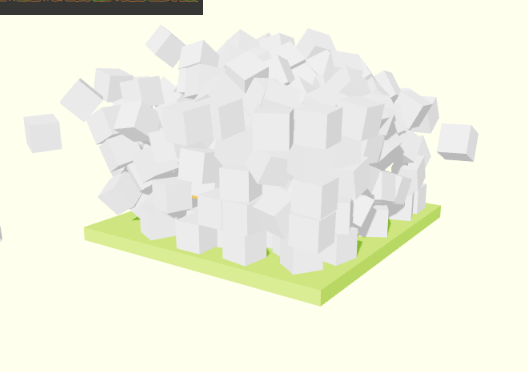
11. InstancedRigidBodies (대량 처리)
const cubesCount = 100
const instances = useMemo(() =>
  Array.from({ length: cubesCount }, (_, i) => ({
    key: 'cube_' + i,
    position: [(Math.random() - 0.5) * 8, 6 + i * 0.2, (Math.random() - 0.5) * 8],
    rotation: [Math.random(), Math.random(), Math.random()],
  }))
, [])

<InstancedRigidBodies instances={instances}>
  <instancedMesh castShadow receiveShadow args={[null, null, cubesCount]}>
    <boxGeometry />
    <meshStandardMaterial color="tomato" />
  </instancedMesh>
</InstancedRigidBodies>
- InstancedRigidBodies → 물리와 instancedMesh 자동 동기화.
- 수백 개 이상의 물리 오브젝트도 효율적으로 처리 가능.
결론
- Rapier + React Three Rapier는 R3F에서 물리 적용을 매우 단순화.
- 자동 collider → 빠른 prototyping.
- 수동 collider → 정밀 제어 가능.
- Forces/Impulse/Kinematics → 게임 로직 유연 구현.
- InstancedRigidBodies → 대규모 오브젝트 처리 가능.
더 나아가기: 고급 기능
1. Joints (관절 / Joints)
Rapier에는 여러 Joint(조인트, 연결부) 타입이 있어서 서로 다른 RigidBody를 연결할 수 있습니다.
이를 활용하면 관절, 로프, 체인, 로봇 팔, 차량 서스펜션 등을 구현할 수 있어요.
종류
- FixedJoint
두 RigidBody를 하나처럼 고정. (焊接된 것처럼 움직임 없음) - RevoluteJoint
한 축을 기준으로만 회전 가능 (예: 문짝 경첩, 바퀴). - PrismaticJoint
한 축 방향으로만 이동 가능 (예: 슬라이딩 도어). - SphericalJoint
3D 공간에서 회전 가능 (예: 볼조인트, 사람 어깨/엉덩이 관절). - GenericJoint
위의 제약을 커스터마이징 가능 (고급).
React Three Rapier 사용 예시
import './style.css';
import ReactDOM from 'react-dom/client';
import { Canvas } from '@react-three/fiber';
import Experience from './Experience.jsx';
import Add from './Add.jsx';
import { Physics } from '@react-three/rapier';
import { Center } from '@react-three/drei';

const root = ReactDOM.createRoot(document.querySelector('#root'));

root.render(
  <Canvas
    shadows
    camera={{
      fov: 45,
      near: 0.1,
      far: 200,
      position: [4, 2, 6],
    }}>
    <Center>
      <Physics debug>
        <Add />
      </Physics>
    </Center>
  </Canvas>,
);
import { Physics, RigidBody, useRevoluteJoint } from '@react-three/rapier';
import { useEffect, useRef } from 'react';
import { Perf } from 'r3f-perf';
import { OrbitControls } from '@react-three/drei';
const Add = () => {
const bodyA = useRef(); // 고정 틀
const bodyB = useRef(); // 매달린 공(동적)
// ── 힌지 정의 ─────────────────────────────────────────────
// - 앵커/축은 양쪽 바디의 "로컬 좌표계" 기준 (docs)
// - 여기선: 틀 큐브의 '아래쪽 면 중앙' ↔ 공의 '윗면(반지름만큼 위)'
// * 틀 큐브 크기: 0.2 → half = 0.1 ⇒ [0, -0.1, 0]
// * 공 반지름: 0.2 ⇒ [0, 0.2, 0]
// - 회전축: Z축 기준 힌지 → [0, 0, 1]
const joint = useRevoluteJoint(bodyA, bodyB, [
[0, -0.1, 0], // bodyA 로컬 앵커
[0, 0.2, 0], // bodyB 로컬 앵커
[0, 0, 1], // 회전축(로컬)
]);
useEffect(() => {
if (!joint.current) return;
// -90° ~ +90° 리밋
joint.current.setLimits(-Math.PI / 2, Math.PI / 2);
// 살짝 밀어서 시작(정지 상태 방지)
bodyB.current?.applyImpulse({ x: 30, y: 0, z: 0 }, true);
}, [joint]);
// ── 초기 위치 정렬 팁 ─────────────────────────────────────
// 월드에서 앵커가 맞닿게 하려면:
// posB = posA + anchorA - anchorB (성분별)
// 아래에서 posA=[0,2,0], anchorA=[0,-0.1,0], anchorB=[0,0.2,0] 이므로
// posB.y = 2 + (-0.1) - 0.2 = 1.7
return (
<>
<Perf position="top-left" />
<OrbitControls makeDefault />
<directionalLight castShadow position={[1, 2, 3]} intensity={4.5} />
<ambientLight intensity={1.5} />
{/* 고정된 바(작은 큐브) */}
<RigidBody
ref={bodyA}
type="fixed"
colliders="cuboid"
position={[0, 2, 0]}>
<mesh>
<boxGeometry args={[0.2, 0.2, 0.2]} />
<meshStandardMaterial color="gray" />
</mesh>
</RigidBody>
{/* 매달린 공(동적) */}
<RigidBody ref={bodyB} colliders="ball" position={[0, 1.7, 0]}>
<mesh>
<sphereGeometry args={[0.2, 16, 16]} />
<meshStandardMaterial color="orange" />
</mesh>
</RigidBody>
</>
);
};
export default Add;👉 이렇게 하면 추에 매달린 진자(Pendulum) 를 만들 수 있습니다.
여러 개 연결하면 로프, 체인, 뱀 같은 구조물도 가능.
2. HeightfieldCollider (지형 충돌체)
일반적으로 큰 Terrain(산/언덕)을 모델링하고 TrimeshCollider로 쓰면 무겁고 충돌 버그가 생기기 쉽습니다.
→ 대신 Rapier는 HeightfieldCollider라는 최적화된 방식을 제공합니다.
원리
- Grid 기반으로, 각 격자의 높이만 기록.
- 내부는 단순한 Heightmap 데이터 (2D 배열).
- 구멍이나 동굴은 불가능 (2D 배열로 표면만 표현).
사용 예시
import './style.css';
import ReactDOM from 'react-dom/client';
import { Canvas } from '@react-three/fiber';
import { Physics } from '@react-three/rapier';
import { Center } from '@react-three/drei';

import Test from './Test.jsx';

const root = ReactDOM.createRoot(document.querySelector('#root'));

root.render(
  <Canvas
    shadows
    camera={{
      fov: 45,
      near: 0.1,
      far: 200,
      position: [4, 2, 6],
    }}>
    <Center>
      <Physics debug>
        <Test />
      </Physics>
    </Center>
  </Canvas>,
);
import * as THREE from 'three';
import { useMemo } from 'react';
import { HeightfieldCollider, RigidBody } from '@react-three/rapier';
import { OrbitControls } from '@react-three/drei';
export default function Test() {
const H2D = [
[0.0, 0.5, 1.0, 0.2],
[0.2, 0.8, 1.5, 0.3],
[0.1, 0.6, 0.7, 0.4],
];
const { width, height, heights1D } = useMemo(() => {
const rows = H2D.length; // 3
const cols = H2D[0].length; // 4
// subdivisions (사각형 수) = 꼭짓점-1
const width = cols - 1; // X 방향 subdivs = 3
const height = rows - 1; // Z 방향 subdivs = 2
// column-major(flatten): c 먼저, r 다음
const flat = new Float32Array(rows * cols);
let k = 0;
for (let c = 0; c < cols; c++) {
for (let r = 0; r < rows; r++) {
flat[k++] = H2D[r][c];
}
}
return { width, height, heights1D: flat };
}, []);
return (
<>
<OrbitControls makeDefault />
<RigidBody type="fixed" position={[0, 0, 0]}>
<HeightfieldCollider
// args: [width, height, heights(1D), scale]
args={[
width, // number: X subdivs
height, // number: Z subdivs
heights1D, // Float32Array: column-major
{ x: 8, y: 2, z: 6 }, // scale: { x: 가로, y: 높이배율, z: 세로 }
]}
/>
</RigidBody>
<RigidBody position={[0, 3, 0]} colliders="ball" restitution={0.2}>
<mesh>
<sphereGeometry args={[0.25, 16, 16]} />
<meshStandardMaterial color="orange" />
</mesh>
</RigidBody>
</>
);
}- args[0]: 고도(height) 값 배열 (Float32Array 권장).
- args[1]: 그리드 크기 (열/행 개수).
- args[2]: 스케일링 (x, y = 가로 세로 크기, z = 높이 배율).
👉 이 방식은 대규모 Terrain을 다룰 때 매우 가볍고 빠름.
👉 단점: 구멍/터널 표현 불가.
3. Rapier + R3F 발전 상황
- Rapier 자체는 Rust 기반이라 빠르게 발전 중.
- react-three-rapier는 PMNDRS 팀이 유지 보수 중.
- 현재까지 주요 발전 방향:
- Joints API 보강 → 더 직관적 사용 가능하도록 개선.
- Collider 최적화 → hull, trimesh 충돌 안정성 향상.
- Event 개선 → 충돌 이벤트에서 상세 정보 제공.
- Debug 도구 강화 → 성능 저하 없는 시각화 준비 중.
공식 참고:
- Rapier Docs: https://rapier.rs/docs
- R3F + Rapier: https://github.com/pmndrs/react-three-rapier
정리
- Joints: 여러 물체 연결 → 로프, 로봇 팔, 탈 것 가능.
- HeightfieldCollider: Heightmap 기반 지형 충돌체 → 대규모 Terrain 효율적 처리.
- Rapier + R3F: 빠른 업데이트 진행 중, 특히 Joint/Collider 기능 확장에 집중.
/**
 * Experience (R3F + Rapier)
 * - OrbitControls / Perf: 카메라와 성능 HUD
 * - Physics: 물리 컨텍스트
 * - Dynamic/Fixed/Kinematic rigid bodies + colliders
 */

import { OrbitControls, useGLTF } from '@react-three/drei';
import { Perf } from 'r3f-perf';
import {
  InstancedRigidBodies,
  CuboidCollider,
  RigidBody,
  Physics,
  BallCollider,
  CylinderCollider,
} from '@react-three/rapier';
import { useEffect, useMemo, useRef, useState } from 'react';
import { useFrame } from '@react-three/fiber';
import * as THREE from 'three';

export default function Experience() {
  // [오디오] 충돌 사운드
  // 역할: 충돌 시 소리 재생. 브라우저 자동재생 정책 때문에 user gesture 후 play 권장.
  const [hitSound] = useState(() => new Audio('./hit.mp3'));

  // [Ref] 동적 박스와 트위스터 핸들
  const cube = useRef();
  const twister = useRef();

  // [액션] 점프 + 토크 임펄스
  // 역할: 질량(mass)에 비례한 임펄스를 적용해, 질량이 달라도 비슷한 체감 점프 높이.
  const cubeJump = () => {
    const mass = cube.current.mass(); // number
    cube.current.applyImpulse({ x: 0, y: 5 * mass, z: 0 }); // upward
    cube.current.applyTorqueImpulse({
      x: Math.random() - 0.5,
      y: Math.random() - 0.5,
      z: Math.random() - 0.5,
    });
  };

  // [프레임] Kinematic 바디 구동
  // 역할: type="kinematicPosition" 인 twister를 매 프레임 회전/이동
  useFrame((state) => {
    const time = state.clock.getElapsedTime();

    // 회전: Euler -> Quaternion
    const euler = new THREE.Euler(0, time * 3, 0);
    const q = new THREE.Quaternion().setFromEuler(euler);
    twister.current.setNextKinematicRotation(q);

    // 원형 경로 이동
    const angle = time * 0.5;
    const x = Math.cos(angle) * 2;
    const z = Math.sin(angle) * 2;
    twister.current.setNextKinematicTranslation({ x, y: -0.8, z });
  });

  // [이벤트] 충돌 시작
  // payload: { manifold, target, other, ... } 형태(상세는 라이브러리 타입 참고)
  // type: Parameters<NonNullable<React.ComponentProps<typeof RigidBody>['onCollisionEnter']>>[0]
  const collisionEnter = () => {
    // hitSound.currentTime = 0;
    // hitSound.volume = Math.random();
    // hitSound.play(); // 사용자 입력 이후 호출 권장
  };

  // [모델] GLTF 로드
  const hamburger = useGLTF('./hamburger.glb');

  // [인스턴스드 바디들] 초기 상태 생성
  const cubeCount = 300;
  const cubeInstances = useMemo(() => {
    //  instances Type: Array<{ key: string, position: [number, number, number], rotation: [number, number, number]}>
    // 선택: scale?: [number,number,number]
    // 선택: linearVelocity?: [number,number,number]
    // 선택: angularVelocity?: [number,number,number]

    const instances = [];

    for (let i = 0; i < cubeCount; i++) {
      instances.push({
        key: 'instance' + i,
        position: [
          (Math.random() - 0.5) * 8,
          6 + i * 0.2,
          (Math.random() - 0.5) * 8,
        ],
        rotation: [Math.random(), Math.random(), Math.random()],
      });
    }
    return instances;
  }, [cubeCount]);

  return (
    <>
      <Perf position="top-left" />
      <OrbitControls makeDefault />

      <directionalLight castShadow position={[1, 2, 3]} intensity={4.5} />
      <ambientLight intensity={1.5} />

      <Physics
        // role: 물리 세계 설정
        // props:
        // - gravity?: [number,number,number]
        // - debug?: boolean (Collider wireframe 표시)
        gravity={[0, -9.81, 0]}
        // debug
      >
        {/* [Sphere] Dynamic 바디 + 수동 Collider */}
        <RigidBody
          // colliders="ball" // 자동 생성도 가능하지만…
          colliders={false} // ❗커스텀 콜라이더를 직접 붙일 때는 false
          position={[-1.5, 4, 0]}>
          <mesh castShadow>
            <sphereGeometry /> {/* 기본 반지름 = 1 */}
            <meshStandardMaterial color="orange" />
          </mesh>
          <BallCollider
            // args: [radius]
            args={[1]} // ✅ 올바른 시그니처
            // restitution={0.5} friction={0.5} density={1}
            // sensor // true면 통과하고 이벤트만 발생
          />
        </RigidBody>

        {/* [Cube] Dynamic 바디 */}
        <RigidBody
          ref={cube}
          colliders={false} // 직접 CuboidCollider로 지정
          gravityScale={1} // 개별 중력 배율
          restitution={0} // 튕김
          friction={1} // 마찰
          position={[1.5, 4, 0]} // 초기 위치(런타임 변경 X)
          onCollisionEnter={collisionEnter}
          // onCollisionExit={() => {}}
          // onSleep={() => {}}
          // onWake={() => {}}
        >
          <mesh castShadow onClick={cubeJump}>
            <boxGeometry args={[1, 1, 1]} />
            <meshStandardMaterial color="mediumpurple" />
          </mesh>
          <CuboidCollider
            // args: [hx, hy, hz] (half extents) → box 1×1×1과 정확히 일치
            args={[0.5, 0.5, 0.5]}
            // mass={1} // 또는 density 사용 권장
            // restitution friction density sensor position rotation ...
          />
        </RigidBody>

        {/* [Twister] Kinematic 바디(코드로 구동) */}
        <RigidBody
          ref={twister}
          position={[0, -0.8, 0]}
          friction={0}
          type="kinematicPosition">
          <mesh castShadow scale={[0.4, 0.4, 3]}>
            <boxGeometry />
            <meshStandardMaterial color="red" />
          </mesh>
          {/* ❗Collider 필요. scale 반영해서 half-extent 직접 계산 */}
          <CuboidCollider args={[0.2, 0.2, 1.5]} />
        </RigidBody>

        {/* [Burger] GLTF + 근사 Collider */}
        <RigidBody colliders={false} position={[0, 4, 0]}>
          <primitive object={hamburger.scene} scale={0.25} />
          {/* 주의: Mesh scale은 Collider에 자동 반영되지 않음 */}
          {/* 예) 원래가 halfHeight=0.5, radius=1.25라면, 스케일 0.25 반영값으로 줄여야 정확 */}
          <CylinderCollider
            args={[0.5 * 0.25, 1.25 * 0.25]} // ← 스케일 반영 버전 권장
          />
        </RigidBody>

        {/* [Floor] Fixed 바디(바닥) */}
        <RigidBody type="fixed" restitution={0} friction={1}>
          <mesh receiveShadow position-y={-1.25}>
            <boxGeometry args={[10, 0.5, 10]} />
            <meshStandardMaterial color="greenyellow" />
          </mesh>
        </RigidBody>

        {/* [Walls] Fixed 바디(벽) - Collider만(렌더링 없음) */}
        <RigidBody type="fixed">
          <CuboidCollider args={[5, 2, 0.5]} position={[0, 1, 5.25]} />
          <CuboidCollider args={[5, 2, 0.5]} position={[0, 1, -5.25]} />
          <CuboidCollider args={[0.5, 2, 5]} position={[5.25, 1, 0]} />
          <CuboidCollider args={[0.5, 2, 5]} position={[-5.25, 1, 0]} />
        </RigidBody>

        {/* [Instanced] 대량 박스 */}
        <InstancedRigidBodies instances={cubeInstances}>
          <instancedMesh
            castShadow
            receiveShadow
            args={[null, null, cubeCount]}>
            <boxGeometry />
            <meshStandardMaterial />
          </instancedMesh>
        </InstancedRigidBodies>
      </Physics>
    </>
  );
}'Graphic > R3F' 카테고리의 다른 글
| 66 Mini-Game: Marble Race (2) | 2025.08.20 |
|---|---|
| 64 Laptop Scene (1) | 2025.08.18 |
| 63 후처리(Post Processing) (5) | 2025.08.18 |
| 62 Pointer Events (Mouse Events) (7) | 2025.08.18 |
| 61 Portal Scene (0) | 2025.08.18 |


